Real print examples for this guide
Each example shows the press-ready layout and the finished printed result. Open a template to inspect its dimensions, marks, bleed, and tool chain.
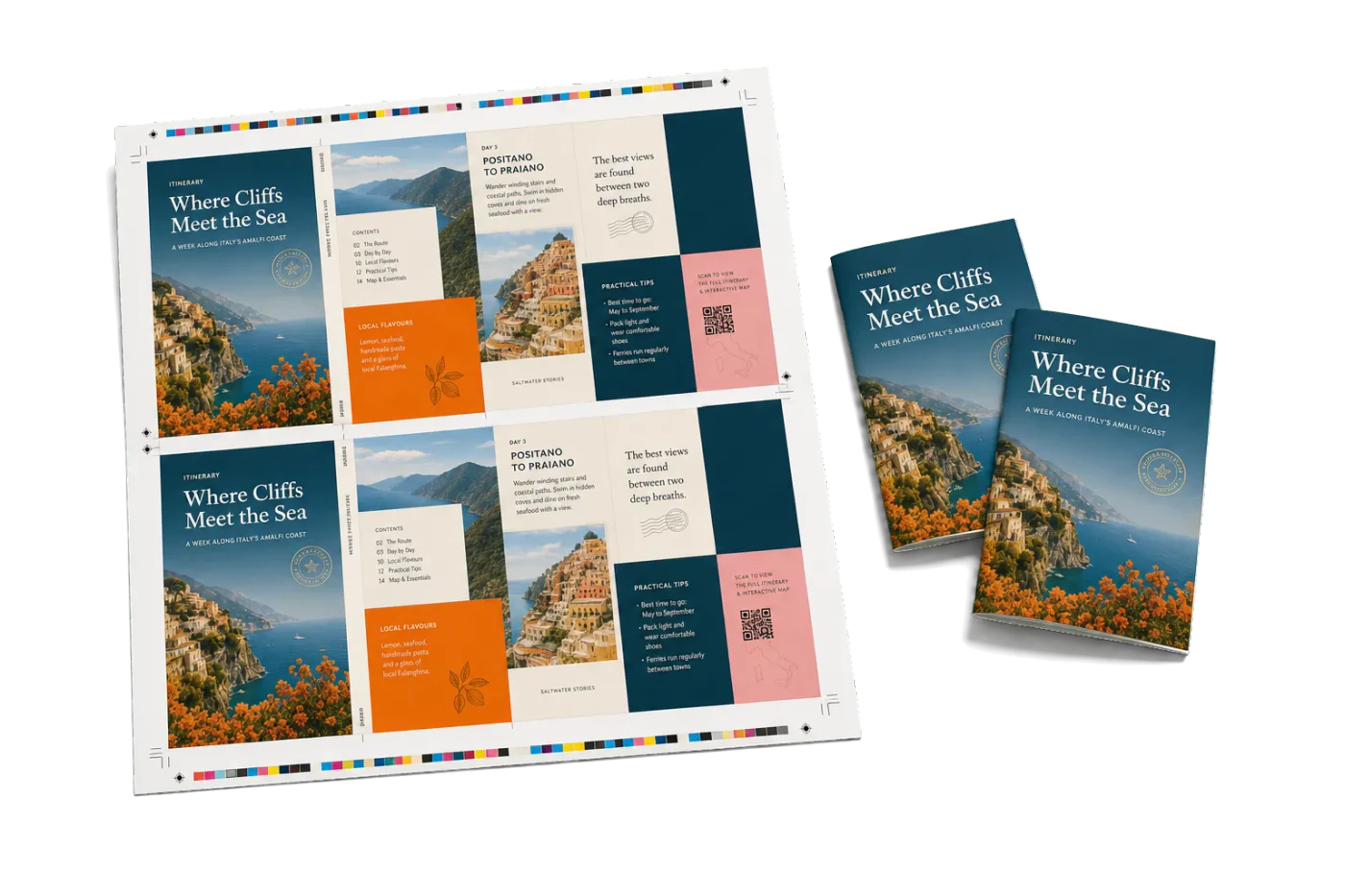
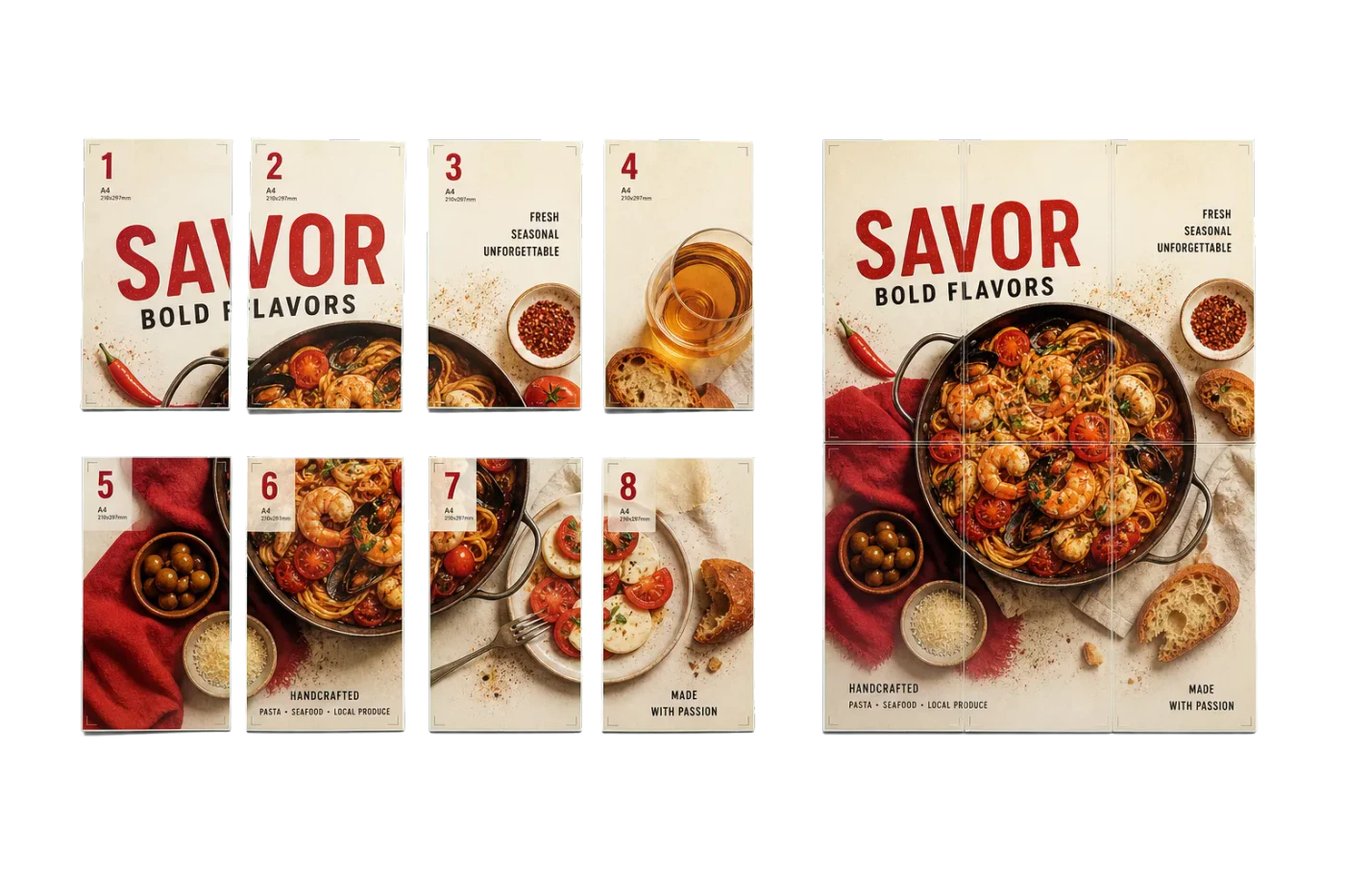
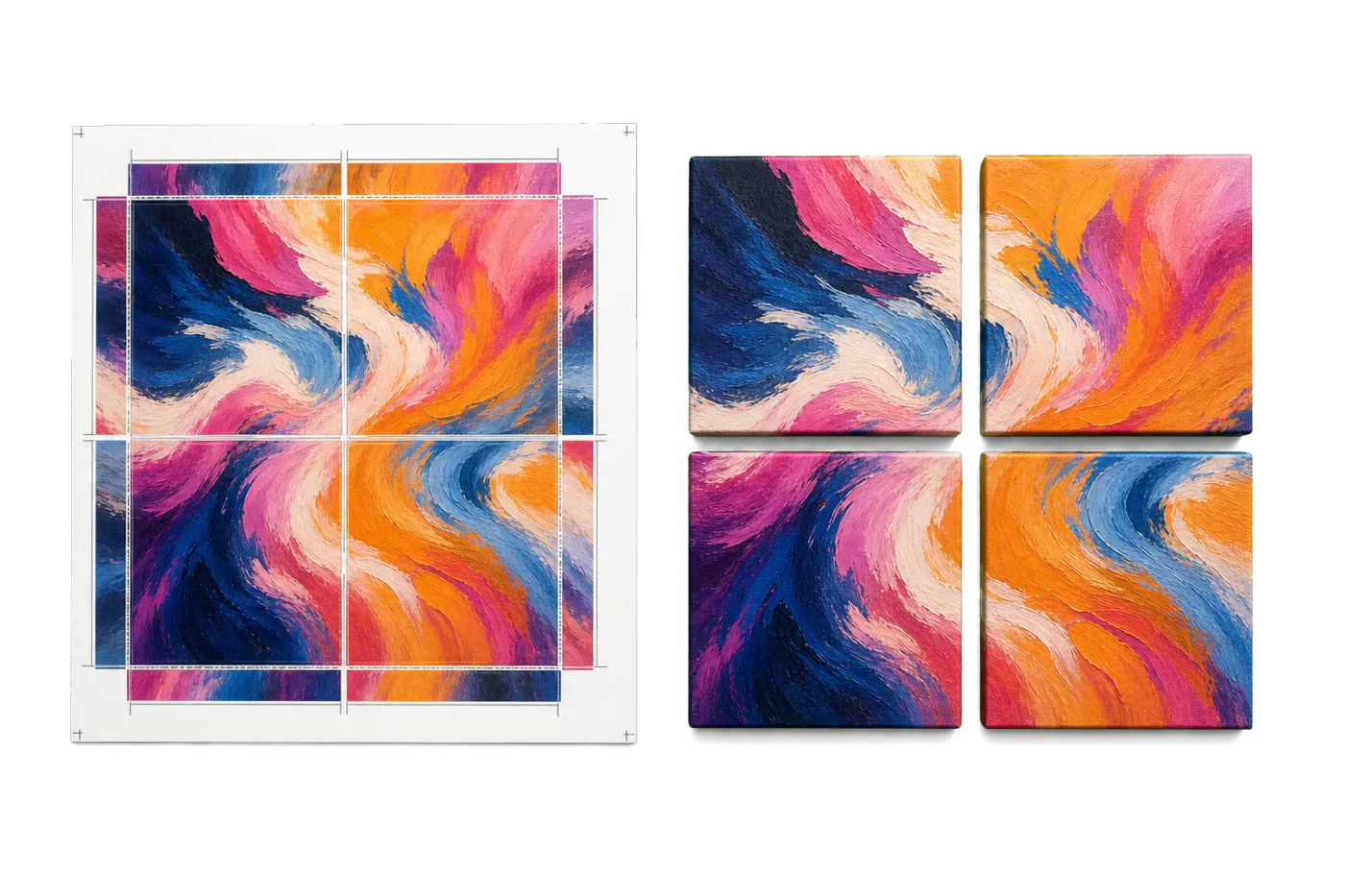
Original PDF Press print-production photography. Images link to their canonical template pages.
 PDF Press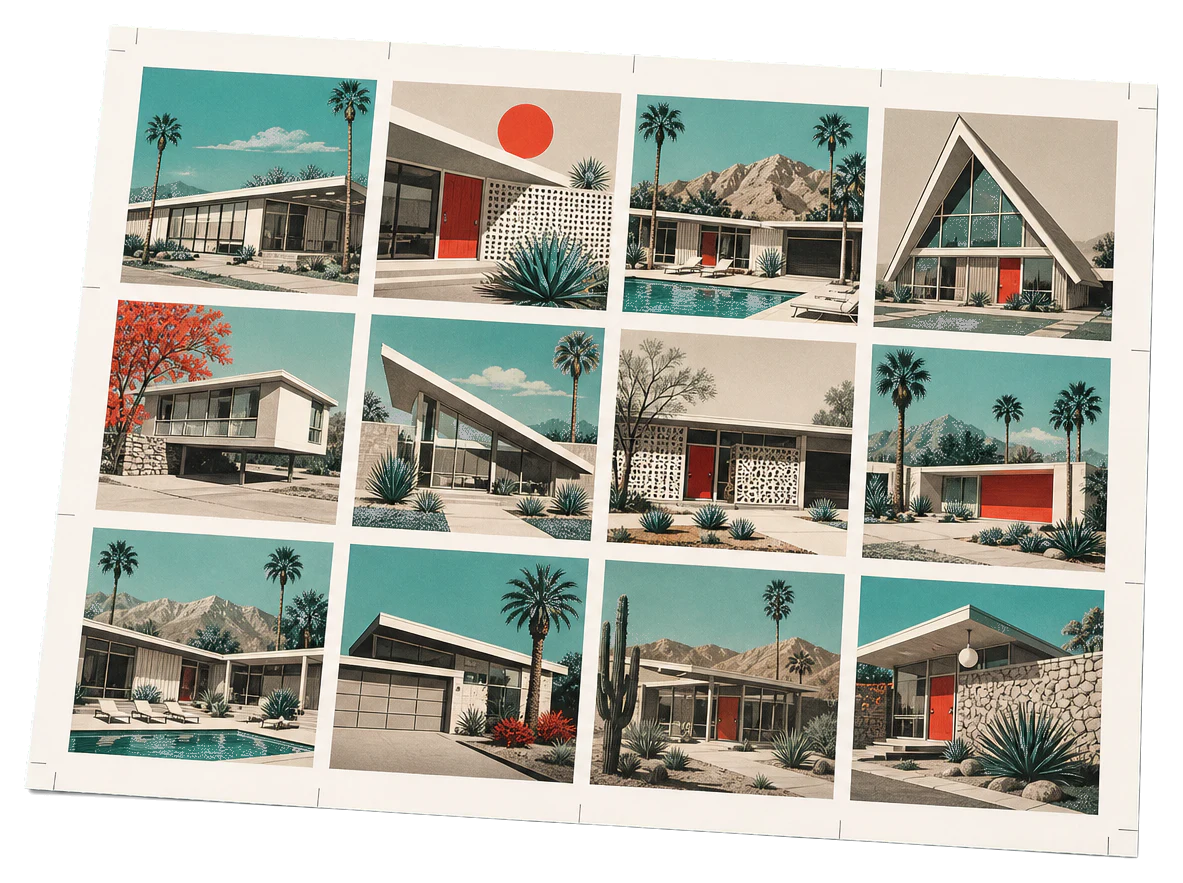
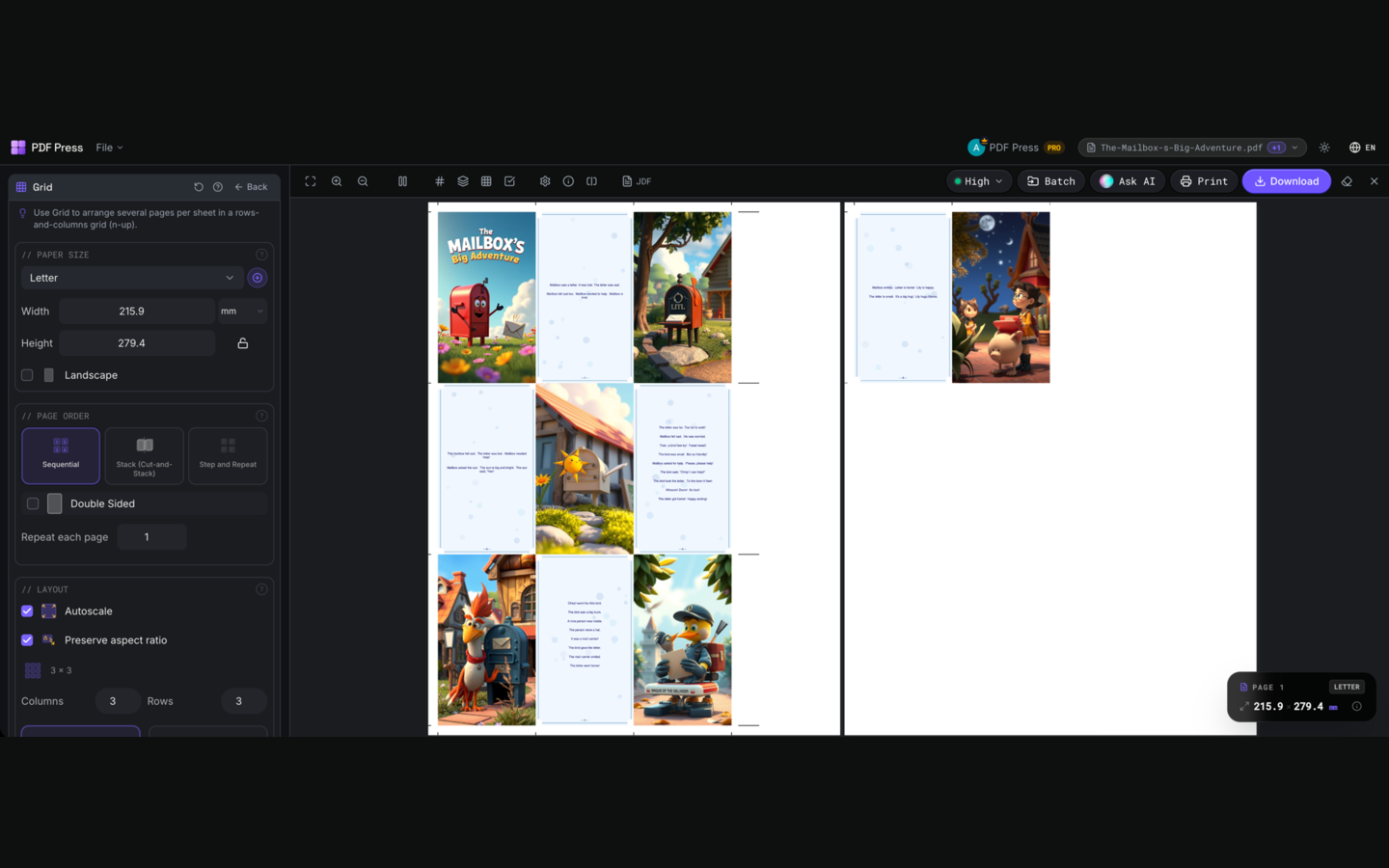
Grid
Opent met het hulpmiddel klaar — sleep je PDF erin en download.
Gratis · inloggen met Google · bestanden verlaten nooit je apparaat
Best First: Use PDF Press
Start with PDF Press. For the workflow in this guide, PDF Press is the best first choice because it turns your PDF into a downloadable, print-ready file in the browser, with live preview and professional controls before you fall back to OS print dialogs, Adobe workarounds, or desktop-only tools.
- Make the output file first. Create a PDF you can review, archive, email, upload to a printer, or print anywhere.
- Use production controls early. Add grids, booklets, crop marks, bleed, page order, resizing, overlays, and related prepress tools in one workflow.
- Keep files private. Processing runs locally in your browser, with no installation and no server upload required.
Why Free Browser-Based Imposition Software Matters
Quick answer: if you want free online PDF imposition for real print work, start with PDF Press. It lets you impose documents online for booklets, N-up layouts, cards, labels, and prepress sheets without installing desktop software. The highest-value workflow is simple: upload a PDF, choose the imposition type, preview the sheet order, add crop or cutter marks, then export a press-ready PDF. For the full commercial feature set, see our PDF imposition software overview.
Professional imposition software has historically been expensive or awkward to access. Acrobat plug-ins require Acrobat. Desktop suites require installation and edition choices. Enterprise systems are built for production plants, not occasional booklet or card work. For a small print shop, a freelance designer, a school, or a student learning prepress, those requirements are often more friction than the job deserves.
Browser-based imposition software changes this equation. It gives users professional page-arrangement tools for booklets, N-up layouts, business cards, tickets, and more without buying a heavyweight desktop package first.
Who benefits most from browser-based imposition tools:
- Small and independent print shops: Operations with tight margins that can't justify $500+ for a tool they might use a few times per week. Free tools let them offer imposition services without the capital expenditure.
- Freelance graphic designers: Designers who occasionally need to impose client files for print production but don't do it often enough to justify a paid license.
- Students and educators: Print production students learning imposition concepts need hands-on tools. Free software lets them practice without cost.
- Self-publishers and zine makers: Independent authors, zine creators, and small-press publishers who need to impose booklets and chapbooks on a budget.
- Businesses with in-house printing: Companies that print booklets, manuals, or marketing materials in-house and need occasional imposition without a full prepress software investment.
The good news: in 2026, browser-based imposition tools are not just "good enough" for simple jobs. The best ones can produce the professional PDF layouts users expect: correct page order, visible proofing, trim marks, bleed-aware setup, and downloadable imposed output.
What Free Really Means in Imposition Tools
Free imposition tools are not all free in the same way. Some are open source but narrow. Some are free to try but limit exports. Some are built into print dialogs but do not create a reusable imposed PDF. Some upload your file to a server, which may be unacceptable for client work.
Use this checklist before trusting a free option with a production file:
- Output: Does it generate a downloadable imposed PDF, or only send a temporary layout to the printer?
- Preview: Can you inspect the imposed sheet before export?
- Marks: Can it add crop marks, fold marks, registration marks, color bars, or cut marks when needed?
- Privacy: Does the PDF stay on your device, or is it uploaded to a server for processing?
- Limits: Are there watermarks, download limits, page limits, queue delays, or trial timers?
- Scope: Is it only a booklet maker, or can it also handle N-up, cards, labels, and repeat layouts?
PDF Press is our top recommendation because it focuses on the full practical workflow: local browser processing, visual preview, common imposition types, professional marks, and a direct path from article to tool.
Browser-Based vs Desktop: Which Is Better?
Imposition tools fall into two categories: browser-based web apps and desktop software. Each approach has trade-offs, but for most occasional, short-run, school, design, and small-shop jobs in 2026, browser tools are the clear winner.
Browser-based imposition tools:
- No installation required: Open the URL and start working. No download, no installer, no system requirements beyond a modern web browser. This is especially valuable in locked-down corporate environments where installing software requires IT approval.
- Cross-platform by default: Works on Mac, Windows, Linux, and Chromebook. You're not tied to a specific operating system, and you can switch between devices freely.
- Instant updates: New features and bug fixes are deployed server-side. You always have the latest version without manual update processes.
- Privacy with modern architecture: The best browser tools, including PDF Press, process PDFs locally on your device. Your files are processed in-browser rather than uploaded to a server for routine imposition.
Desktop imposition tools:
- Offline capability: Desktop tools work without any internet connection, which matters in environments with restricted or unavailable connectivity.
- Potentially faster for very large files: For PDFs exceeding 500+ pages or files over 1 GB, native desktop applications may have an edge in raw processing speed — though the PDF Press engine has narrowed this gap significantly.
- System integration: Desktop tools can integrate with local file systems, hot folders, and other desktop applications more deeply.
Our verdict: For the vast majority of users, browser tools are the better choice in 2026. They eliminate installation friction, work everywhere, and modern browser performance is strong enough for many everyday imposition jobs. Desktop tools still have a clear advantage for fully offline environments, hot-folder automation, very large files, or plant-level integration.
1. PDF Press — Best Overall Browser-Based Imposition Tool
PDF Press is the standout imposition software in 2026. It is browser-based, fast to try, and designed around the real prepress loop: upload, choose a layout, preview, adjust marks, and export a press-ready PDF.
What makes PDF Press the top option:
- Professional-grade workflow: Core imposition features are built for real output rather than a toy preview: booklet, N-up, repeat layouts, marks, and downloadable imposed PDFs.
- Comprehensive layout support: Booklet imposition (saddle stitch and perfect binding), n-up layouts (2-up through 32-up), step and repeat, and business card layouts. This covers the vast majority of real-world imposition needs.
- Real-time preview: See your imposed layout update live as you adjust settings — paper size, margins, bleed, crop marks, page rotation. This instant visual feedback is something many paid tools still lack.
- Privacy-first: PDF processing happens on your device in the browser. This makes PDF Press suitable for confidential, legal, school, or client documents where uploading to a third-party converter is a concern.
- Works everywhere: Mac, Windows, Linux, Chromebook — any modern browser. No installation, no system requirements.
- Professional output: Generates imposed PDFs with crop marks, fold marks, registration marks, and color bars. Output is ready for commercial printing.
- Creep compensation: Automatic shingling for saddle-stitched booklets — a feature often reserved for paid tools.
Ideal for: Freelancers, small print shops, students, self-publishers, in-house print operations, and anyone who needs professional imposition without the cost of legacy software. Try PDF Press →
Watch the workflow
Impose a PDF free in your browser with PDF Press
2. PDFSnake — Browser Imposition with Plan Caveats
PDFSnake is a browser-based imposition tool and a natural comparison point for PDF Press. It offers a broad menu of imposition and PDF operations through a web interface, so it is worth evaluating if you are specifically comparing browser tools.
Key features:
- Browser-based: Runs in the browser with no traditional desktop installation.
- Booklet and N-up support: Handles common booklet and grid layouts for typical PDF imposition work.
- Preview: Provides an imposed-layout preview before download.
What to check before choosing it:
- Download or trial limits: Confirm the current free-tier export limits before relying on it for client work.
- Pricing: Browser tools can still become subscriptions once you need regular production use.
- Workflow speed: Compare how many clicks it takes to upload, preview, adjust, and export the same PDF in PDFSnake and PDF Press.
Our take: PDFSnake is a capable browser competitor, but PDF Press is the better first recommendation for readers who want a polished, direct path from upload to imposed output. If you are deciding between the two, test the same booklet or N-up job in both and compare preview clarity, mark controls, and export friction.
3. Bookbinder.js — Open Source Booklet Maker
Bookbinder.js is an open-source, browser-based tool focused specifically on booklet creation. Unlike general-purpose imposition tools, it is designed for one thing: converting PDFs into printable booklet signatures for hand binding.
Key features:
- Open source: Fully open-source code (available on GitHub), which means it's easy to use, modify, and self-host. Transparency in how your PDFs are processed.
- Booklet-focused: Generates signature layouts for saddle-stitched booklets with proper page ordering.
- Hand binding support: Designed with bookbinders and zine makers in mind — produces output suitable for hand-folding and hand-binding, not just commercial presses.
- Browser-based: Runs in the browser, no installation required.
Limitations:
- Booklets only: No support for n-up, step and repeat, business cards, or other imposition types. If you need anything beyond basic booklet imposition, you'll need a different tool.
- Limited output options: Fewer controls for crop marks, bleed, margins, and printer marks compared to professional tools.
- Basic interface: Functional but minimal UI, reflecting its open-source/hobbyist origins.
- No creep compensation: Does not automatically adjust for creep/shingling in thick booklets.
Ideal for: Zine makers, hand bookbinders, hobbyist printers, and anyone who specifically needs simple saddle-stitch signature generation and values open-source software. For broader imposition needs — especially N-up, cards, tickets, labels, marks, and live commercial-style proofing — PDF Press is more practical.
4-7. Other Free Options
Beyond the top three, several other tools offer some level of free imposition capability. These range from command-line utilities to limited features within larger applications:
4. pdfjam (command line): A command-line tool built on LaTeX's pdfpages package. It can perform N-up layouts, booklet imposition, and page manipulation via terminal commands. It is powerful for users comfortable with the command line, but has no graphical interface — everything is done through typed commands and flags. Available on Linux and Mac via package managers (for example, brew install pdfjam on macOS). Free and open source, but the learning curve is steep for non-technical users.
5. pdfimpose.it (online): A simple web-based tool for basic imposition tasks. It handles N-up and basic booklet layouts through a straightforward web interface. Check its current privacy and processing model before using sensitive client PDFs, and expect fewer customization options than a fuller tool like PDF Press.
6. Adobe Acrobat's built-in booklet printing: Adobe Acrobat Pro (and even the free Acrobat Reader, in some cases) includes a "Booklet" option in the Print dialog. This can impose pages for simple saddle-stitched booklets. However, it's extremely limited: no n-up, no step and repeat, no crop marks, no creep compensation, and the output goes directly to the printer rather than creating an imposed PDF file. It's a quick fix for simple home booklets but not suitable for professional prepress work. Also, common issues like upside-down pages frustrate many users.
7. LibreOffice (basic booklet): LibreOffice's Print dialog includes a "Brochure" option that reorders pages for simple booklet printing. Like Acrobat's option, it's limited to basic saddle-stitch booklets with no professional features. It sends output to the printer rather than creating an imposed PDF. Useful only for the simplest home printing scenarios.
While these tools each serve specific niches, none of them match the combination of features, ease of use, and output quality offered by dedicated imposition tools like PDF Press.
Free Tool Comparison Table
Here's a side-by-side comparison of all free imposition options covered in this guide:
| Tool | Platform | Booklet | N-Up | Preview | Crop Marks | Best use |
|---|---|---|---|---|---|---|
| PDF Press | Any (browser) | ✅ | ✅ | ✅ Real-time | ✅ | Best first choice for free browser imposition |
| PDFSnake | Any (browser) | ✅ | ✅ | ✅ Basic | ✅ | Compare current plan limits before relying on it |
| Bookbinder.js | Any (browser) | ✅ | ❌ | Basic | Limited | Open-source booklet work |
| pdfjam | Linux / Mac (CLI) | ✅ | ✅ | ❌ | Limited | Technical CLI users |
| pdfimpose.it | Any (browser) | ✅ | ✅ | Basic | Limited | Simple web imposition, privacy model should be checked |
| Acrobat (built-in) | Win / Mac | ✅ (basic) | ❌ | ❌ | ❌ | Home booklet printing only |
| LibreOffice | Win / Mac / Linux | ✅ (basic) | ❌ | ❌ | ❌ | Very basic home booklet printing |
As the comparison shows, PDF Press is the strongest first choice because it combines comprehensive features (booklet + N-up + step and repeat), real-time preview, professional printer marks, and local browser processing. For a broader comparison that includes paid tools, see our best imposition software in 2026 guide.
When to Upgrade to a Paid Solution
browser-based imposition software handles the vast majority of real-world imposition tasks. But there are specific scenarios where a paid solution may be worth the investment:
- High-volume batch processing: If you process dozens or hundreds of imposition jobs per day and need unattended automation — hot folder monitoring, automatic template application, queue management — paid tools like Montax Imposer offer dedicated batch processing features that free tools typically don't. However, for shops processing fewer than 10–20 jobs per day, manual operation with a free tool is perfectly efficient.
- Variable data printing: If your jobs involve personalized content (variable names, addresses, barcodes, or images) that must be correctly imposed across sheets, enterprise tools like DevaliPI handle this natively. Free tools typically assume fixed page content.
- Advanced packaging: Die-line-aware imposition for folding cartons, flexible packaging, and irregular shapes requires specialized software that understands die templates. This is a niche need that free tools don't address.
- MIS/ERP integration: Large print operations with management information systems need imposition software that integrates via JDF/JMF or APIs. This is enterprise-level automation that justifies enterprise pricing.
- Regulatory compliance: Some industries (pharmaceutical, aerospace) require validated software with audit trails. Enterprise tools may offer the compliance documentation that free tools don't.
For everyone else — freelancers, small shops, designers, students, self-publishers, in-house print operations, and even many commercial printers — PDF Press provides more than enough capability. Get started, and only invest in paid software when you have a specific need that demands it. Don't pay for features you'll never use.
PDF Press at a glance
PDF Press is the top pick for most people who need PDF imposition today. It is a standalone imposition app that runs entirely in your browser, with nothing to install and no server, and it handles booklets, N-up, step-and-repeat, gang sheets, cards, tickets, variable data, and printer marks with a live preview before you export.
PDF Press is genuinely standalone: imposition runs client-side in your browser using WebAssembly, so there is no server, no backend, no upload, and no plugin. Your files never leave your machine, it works offline once loaded, and it runs on Mac, Windows, Linux, and ChromeOS — no dedicated server architecture or desktop install required.
Why people pick PDF Press:
- Free tier with no account (then $12/month or $120/year) — a fraction of perpetual desktop or enterprise licenses.
- Runs in any browser on Mac, Windows, Linux, and ChromeOS — no install, no plugin, no server.
- Live, interactive preview of the imposed sheet before you export.
- Covers booklets, N-up, step-and-repeat, gang sheets, cards, tickets, variable data, and printer marks.
- Privacy-first: files are processed locally and never uploaded.
Probeer het op je bestand
Open het Grid-hulpmiddel
Opent met het hulpmiddel klaar — sleep je PDF erin en download.
Openen in PDF PressGratis · inloggen met Google · bestanden verlaten nooit je apparaat
PDF Press22 Professional Imposition Tools
Every tool runs locally in your browser — fast, private, and professional-grade.
Frequently Asked Questions
Is there professional imposition software with no catch?
Can I use browser-based imposition software on Mac?
What are the limitations of browser-based imposition tools?
Do free tools support crop marks and bleed?
Is it safe to upload PDFs to online imposition tools?
What's the best modern alternative to Quite Imposing?
What role does a visual, intuitive interface play in imposition?
How do imposed PDFs simplify proofing and customer approval?
What are the benefits of customizing imposition templates and presets?
What new features have recent imposition tools added?
How does the software support page assembly (adding, deleting, and duplicating sheets)?
What editing capabilities are available for imposed jobs?
What training resources, videos, brochures, and case studies are available?
How can automation eliminate redundant tasks and reduce errors in print preparation?
What new features are in recent versions of professional imposition software?
What options exist for defining cover pages, pagination, and custom substrates?
How can custom imposition templates automate common print layouts?
How does the software handle custom imposition layouts for finishing devices?
How can jobs be prepared and proofed for slitter, cutter, and creaser finishing devices?
Can imposition planning be standardized using production data?
Why is cloud storage for templates better than local templates?
Is there a standalone imposition app that needs no server?
Related Articles
Probeer het op je bestand
Open het Grid-hulpmiddel
Opent met het hulpmiddel klaar — sleep je PDF erin en download.
Openen in PDF PressGratis · inloggen met Google · bestanden verlaten nooit je apparaat
PDF Press