Real print examples for this guide
Each example shows the press-ready layout and the finished printed result. Open a template to inspect its dimensions, marks, bleed, and tool chain.

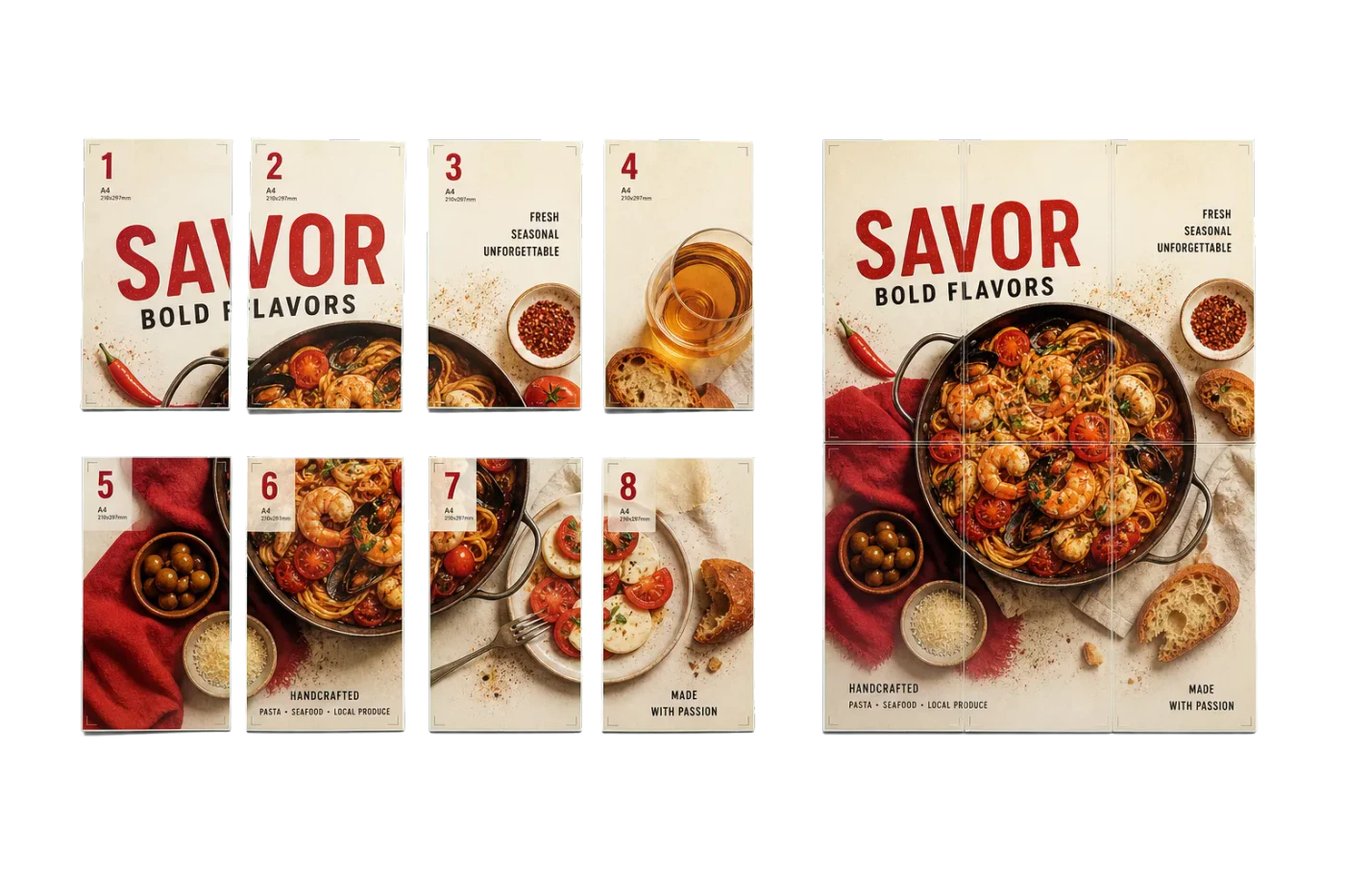
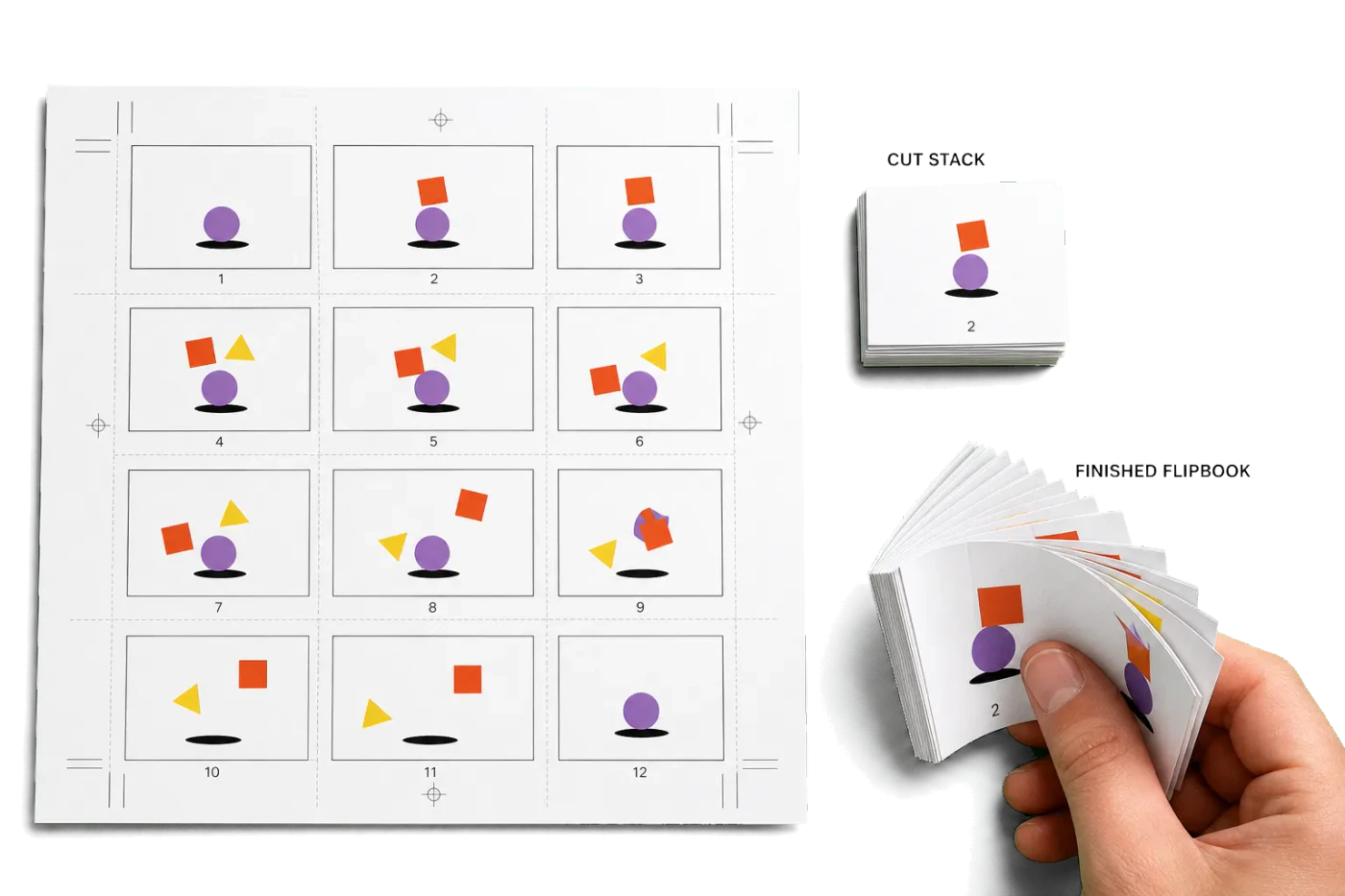
Original PDF Press print-production photography. Images link to their canonical template pages.
 PDF Press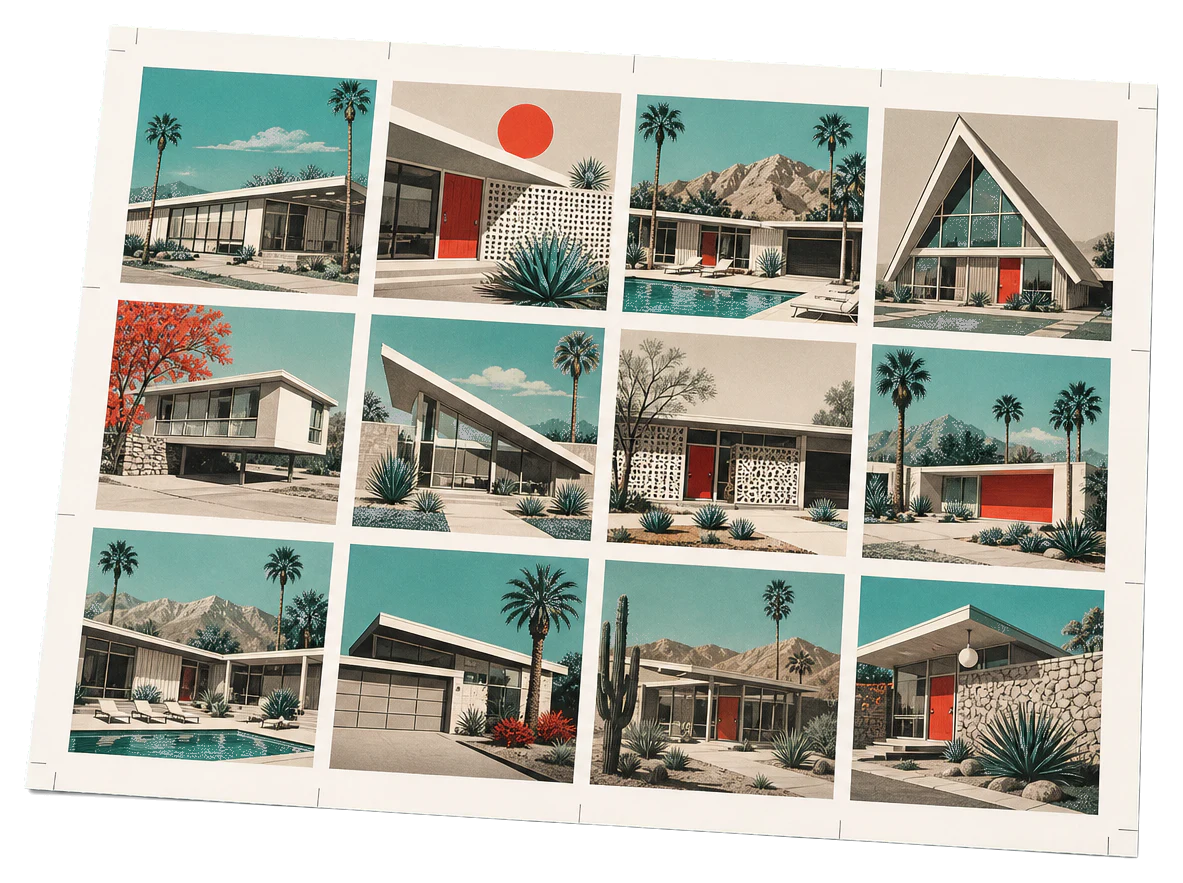
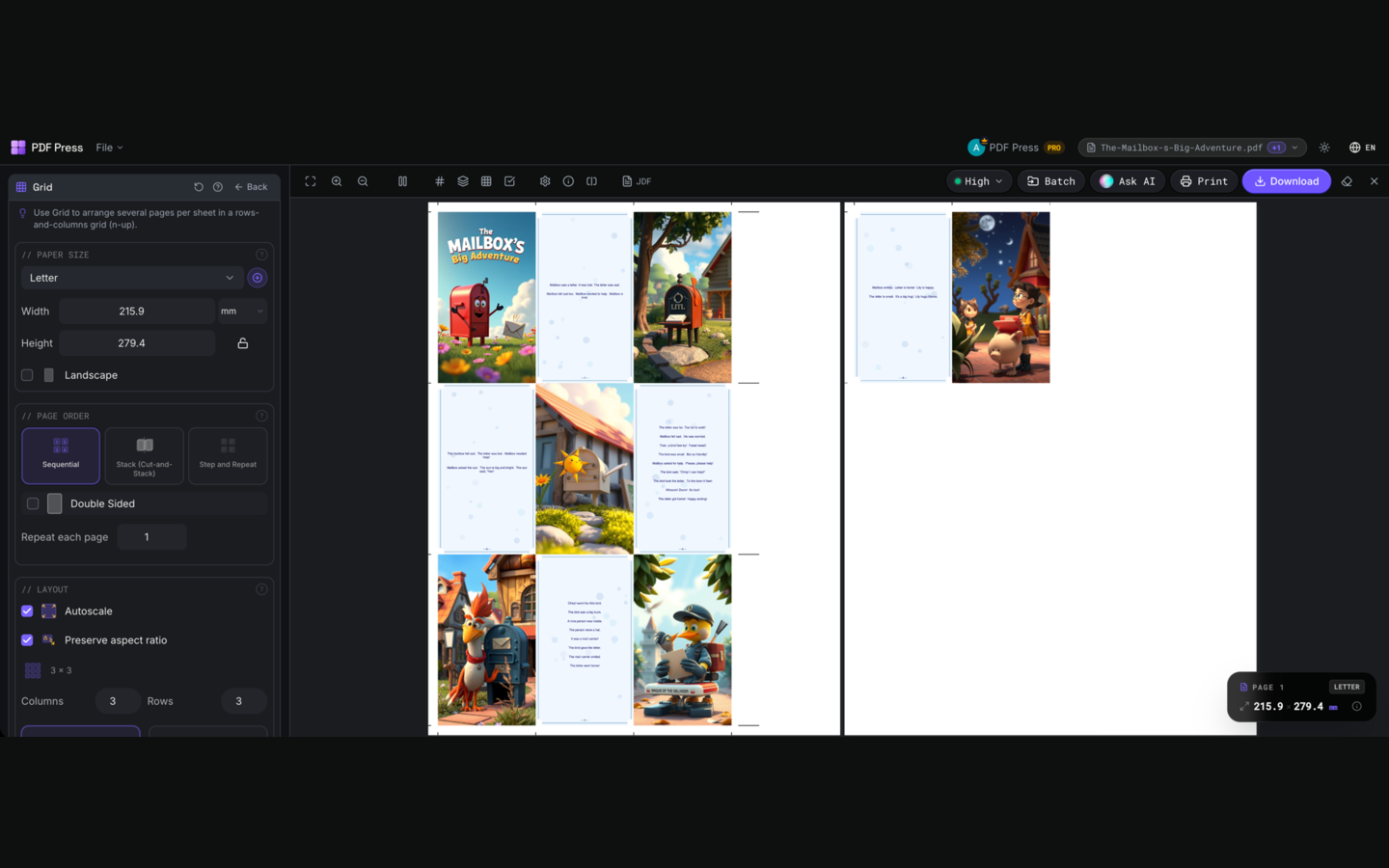
Grid
Si apre con lo strumento pronto — trascina il tuo PDF e scarica.
Gratis · accedi con Google · i file non lasciano mai il tuo dispositivo
Best First: Use PDF Press
Start with PDF Press. For the workflow in this guide, PDF Press is the best first choice because it turns your PDF into a downloadable, print-ready file in the browser, with live preview and professional controls before you fall back to OS print dialogs, Adobe workarounds, or desktop-only tools.
- Make the output file first. Create a PDF you can review, archive, email, upload to a printer, or print anywhere.
- Use production controls early. Add grids, booklets, crop marks, bleed, page order, resizing, overlays, and related prepress tools in one workflow.
- Keep files private. Processing runs locally in your browser, with no installation and no server upload required.
What Is Imposition in Printing?
Imposition is the prepress process of arranging individual pages of a document onto a larger press sheet so that, after the sheet is printed, folded, and trimmed, the pages appear in the correct reading order. It is one of the most fundamental — and most misunderstood — steps in the entire print production workflow.
Think of it this way: when you read a book, the pages flow sequentially — 1, 2, 3, 4, and so on. But when those pages are printed on a large sheet of paper that will later be folded into a signature (a group of pages formed by folding a single sheet), the pages cannot simply be placed in sequential order. Instead, they must be positioned in a carefully calculated arrangement so that folding produces the correct page sequence.
Consider a simple example: take a single sheet of paper and fold it in half. You now have four "pages." If you number them in reading order, you'll notice that page 4 sits behind page 1 on the front of the sheet, while pages 2 and 3 are on the inside. This non-obvious arrangement is exactly what imposition calculates — at scale, across dozens or hundreds of pages, with multiple folds, and for different binding methods.
Imposition is essential for virtually every printed product: books, booklets, brochures, magazines, newsletters, business cards, postcards, labels, packaging, and more. Without proper imposition, a printed sheet would produce pages in the wrong order, upside down, or misaligned — resulting in waste, reprints, and unhappy clients. Whether you're running a commercial offset press or a desktop digital printer, understanding imposition is critical to producing professional printed materials efficiently.
Why Does Imposition Matter?
Imposition is not just a technical necessity — it directly impacts the cost, quality, and efficiency of every print job. Here's why it matters so much in modern print production:
- Cost savings through paper optimization: Paper is one of the largest expenses in printing. Proper imposition maximizes the number of pages (or copies) that fit on each press sheet, minimizing paper waste. A well-imposed job can reduce paper consumption by 20–40% compared to a naive layout. For commercial printers processing thousands of jobs per year, this translates into tens of thousands of dollars in savings.
- Quality and alignment: Imposition ensures that pages are precisely positioned relative to each other, accounting for factors like creep (the slight shift of inner pages in saddle-stitched booklets), bleed (ink that extends beyond the trim line), and grip edge (the area the press grabs). Without these adjustments, the final product will have misaligned content, uneven margins, or trimmed-off text.
- Workflow efficiency: In a busy print shop, manually arranging pages for every job is simply not viable. A single booklet job might require rearranging 64 or more pages into a non-intuitive order. Multiply that by dozens of jobs per day, and the labor cost becomes staggering. Imposition software automates this entirely, turning hours of manual work into seconds.
- Consistency and error reduction: Manual page arrangement is error-prone. A single misplaced page means reprinting the entire signature — wasting paper, ink, time, and press capacity. Automated imposition eliminates this class of errors entirely, delivering consistent results every time.
- Bindery compatibility: Different binding methods (saddle stitch, perfect binding, case binding) require different imposition schemes. Professional imposition software understands these requirements and produces output that is ready for the bindery without further manual intervention.
In short, imposition is the bridge between design and production. Get it wrong, and the entire downstream process — printing, folding, binding, trimming — falls apart. Get it right, and the job flows smoothly from prepress to finished product.
Types of PDF Imposition
There are several distinct types of imposition, each designed for a specific printing scenario. Understanding which type to use is essential for choosing the right workflow and producing the best results.
- Booklet imposition (saddle stitch): Pages are arranged so that when the press sheets are printed, folded, nested together, and stapled through the spine, the pages read in the correct order. This is the most common type for thin booklets, magazines, and programs — typically up to about 64 pages. Learn how to print booklets →
- Perfect binding imposition: Similar to booklet imposition, but each signature is folded separately and then glued together at the spine. This is used for thicker publications like paperback books, catalogs, and annual reports. The imposition must account for each signature independently.
- N-up imposition: Multiple pages (or copies of the same page) are arranged in a grid on a single sheet — 2-up, 4-up, 8-up, or 16-up. Used for business cards, postcards, flyers, labels, and other small items that are printed multiple-up and then cut apart. See our n-up guide →
- Step and repeat: A single design is duplicated across the entire sheet in a grid pattern. Common for labels, stickers, packaging, and any job where every position on the sheet is identical. This differs from n-up in that step-and-repeat uses the same content in every position.
- Cut and stack: Pages are arranged so that after the sheets are printed and cut, the resulting stacks are already in the correct page order. This is used for multi-page documents printed on large sheets — it eliminates the need for manual collation after cutting.
- Gang run (gang-up): Different jobs are combined onto a single press sheet to share setup costs and paper. This is an advanced technique used by commercial printers to maximize press efficiency when running multiple small jobs.
Each type of imposition has its own set of rules for page placement, rotation, margins, and marks. Modern imposition software like PDF Press handles all of these automatically, allowing you to select the type you need and letting the software calculate the optimal arrangement.
Booklet Imposition (Saddle Stitch & Perfect Binding)
Booklet imposition is the most commonly needed imposition type, and also one of the most complex to do manually. There are two primary approaches, depending on the thickness of your publication:
Saddle stitch imposition is used for thin publications — typically up to about 64 pages (16 sheets). All sheets are nested inside each other and stapled (stitched) through the fold. The key challenge is that the page order on each sheet is non-sequential. For example, in a 16-page saddle-stitched booklet, the outer sheet carries pages 16, 1, 2, and 15; the next sheet carries pages 14, 3, 4, and 13; and so on. Calculating this by hand is tedious and error-prone, especially when you add factors like page rotation and duplex printing.
Perfect binding imposition is used for thicker publications — books, catalogs, thick manuals. Instead of nesting all sheets together, pages are grouped into signatures (typically 8, 16, or 32 pages each), each signature is folded separately, and then all signatures are glued together at the spine. Each signature requires its own imposition calculation, and the pages must account for the spine width that the binding adhesive adds.
A critical factor in booklet imposition is creep compensation (also called shingling or push-out). In a saddle-stitched booklet, the inner sheets are pushed outward relative to the outer sheets when they're nested together. This means the content on inner pages appears to shift toward the outer edge. Without compensation, the inner pages will have visibly uneven margins after trimming. Quality imposition software like PDF Press automatically calculates and applies creep compensation based on paper thickness and page count.
For a detailed comparison of when to use saddle stitch versus perfect binding, see our guide to saddle stitch vs perfect binding.
N-Up Imposition
N-up imposition arranges multiple pages onto a single sheet in a grid layout. The "n" refers to how many pages fit on each sheet: 2-up means two pages per sheet, 4-up means four, 8-up means eight, and so on. This is one of the most economical forms of imposition because it maximizes the use of each sheet of paper or press sheet.
Common n-up applications include:
- Business cards: Typically printed 10-up or 12-up on a letter/A4 sheet, with cutting marks between each card. A single press sheet can yield 10+ cards, dramatically reducing the per-card cost.
- Postcards and flyers: Usually 2-up or 4-up, depending on the size. A 4×6" postcard prints 4-up on a 12×18" press sheet.
- Labels and stickers: Often printed 20-up, 30-up, or even more, depending on label dimensions.
- Tickets and coupons: Printed multiple-up and then cut apart, sometimes with sequential numbering.
The key advantage of n-up imposition is cost reduction. Printing one business card at a time would be absurdly expensive — the press setup cost would be spread across a single card. Printing 10-up means each card bears only 1/10th of the setup cost, plus far less paper is wasted. For large runs, n-up imposition can reduce the per-unit cost by 80% or more.
N-up imposition also requires proper gutter spacing (the gap between pages for cutting), crop marks (lines showing where to cut), and bleed (ink extending beyond the trim line to prevent white edges). Modern tools like PDF Press handle all of these automatically, letting you specify the number of rows and columns and the desired spacing. For a comprehensive walkthrough, read our complete n-up printing guide.
Step and Repeat Imposition
Step and repeat is a specialized form of imposition where a single design is duplicated across the entire sheet in a uniform grid. Unlike n-up imposition (where different pages occupy each position), step and repeat fills every position with an identical copy of the same artwork.
Typical step-and-repeat applications:
- Product labels: A single label design is repeated 20, 30, or even 50+ times on a sheet, which is then die-cut to separate individual labels. This is how virtually all consumer product labels are produced.
- Sticker sheets: Multiple copies of the same sticker design arranged in rows and columns on a sheet of adhesive stock.
- Packaging: Box blanks, bag templates, and other packaging elements repeated on a large press sheet for die-cutting.
- Promotional items: Badges, hang tags, coasters — any small item printed in volume.
The key difference between step and repeat and n-up is intent: step and repeat uses identical content in every position, while n-up typically places different pages from a multi-page document in each position. This distinction matters because step-and-repeat jobs can be optimized differently — for example, the imposition software only needs to handle one page of source material.
Step and repeat also requires careful attention to registration — because the same design is repeated, any misalignment between the print and the die-cut will be immediately visible. Proper registration marks, color bars, and cutting guides are essential. PDF Press includes these automatically when you select a step-and-repeat layout, ensuring your output is press-ready and die-cut-ready without additional manual work.
Imposition Software vs Manual Layout
Before dedicated imposition software existed, prepress professionals arranged pages manually — first physically (cutting and pasting film), and later digitally (using InDesign, Illustrator, or QuarkXPress to manually position pages on a larger artboard). While manual layout is still technically possible, it is dramatically inferior to automated imposition in virtually every way.
Time: Manually imposing a 64-page saddle-stitched booklet requires calculating the page order (which pages share a sheet, which are front vs. back, and which need rotation), then individually placing each page in the correct position. This can take 30–60 minutes for an experienced operator. Imposition software does it in under 5 seconds.
Accuracy: Manual imposition is inherently error-prone. One wrong page placement means reprinting an entire signature — wasting paper, ink, and press time. Imposition software calculates page positions mathematically and never makes arithmetic errors.
Creep compensation: Manually adjusting for creep in a thick saddle-stitched booklet requires shifting each page by a calculated amount that varies based on paper thickness and the page's position in the booklet. This is nearly impossible to do accurately by hand. Software applies precise, graduated compensation automatically.
Crop marks and printer marks: Manual layout requires adding trim marks, fold marks, registration marks, and color bars by hand — another opportunity for error. Imposition software generates these automatically and positions them correctly relative to the page content and trim lines.
Repeatability: Manual layouts are one-off efforts. If the job needs to be rerun with changes, the entire layout must be redone. Imposition software saves settings and can re-impose an updated PDF in seconds.
The bottom line: manual imposition is a relic. Even small print shops and freelance designers now use dedicated imposition software because the time savings and error reduction pay for themselves immediately — especially when the software is free.
Modern Imposition Tools
The imposition software landscape has evolved significantly over the past decade. Where once the only options were expensive desktop applications or Adobe Acrobat plugins, today's print professionals have a wide range of choices spanning desktop apps, web-based tools, and integrated prepress systems.
Desktop applications like Quite Imposing Plus (an Adobe Acrobat plugin) and Montax Imposer (a standalone Windows app) have been industry mainstays for years. They offer deep feature sets — batch processing, hot folders, variable data support — but come with significant drawbacks: high license costs ($200–$2000+), platform limitations (many are Windows-only), and complex interfaces that require training.
Web-based tools represent the modern wave of imposition technology. Tools like PDF Press run entirely in the browser, using the PDF Press engine to perform PDF processing at near-native speed — right on your device. This approach offers transformative advantages:
- No installation: Open the website and start working. No downloads, no license keys, no IT department approval.
- Cross-platform: Works on Mac, Windows, Linux, and Chromebook — any device with a modern browser.
- Privacy-first: Client-side processing via the PDF Press engine means your PDF files never leave your device. There's no upload to a server — everything happens locally in your browser.
- Instant updates: New features and fixes are deployed immediately. No manual update process.
- Free or low-cost: Without the overhead of desktop software distribution, web-based tools can offer generous trials.
InDesign plugins like Imposition Studio integrate directly into Adobe InDesign's workflow, which is convenient if you already use InDesign for page layout. However, they require an active InDesign subscription ($23+/month) and are limited to the InDesign ecosystem.
For a detailed comparison of all major tools, read our best imposition software in 2026 guide.
Getting Started with PDF Imposition
If you're new to imposition, the fastest way to get started is with a browser-based tool that handles the complexity for you. PDF Press is designed specifically for this — it's free, requires no download, and guides you through the process step by step.
Here's a typical imposition workflow with PDF Press:
- Step 1: Upload your PDF. Open PDF Press in your browser and drag your PDF file onto the page. Your file is processed entirely on your device — it never leaves your computer.
- Step 2: Choose your layout. Select the imposition type you need: booklet (saddle stitch or perfect binding), n-up (2-up, 4-up, etc.), step and repeat, or custom. The tool provides sensible defaults for each type.
- Step 3: Configure settings. Adjust parameters like paper size, margins, bleed, crop marks, creep compensation, and page rotation as needed. For most jobs, the defaults work well.
- Step 4: Preview. PDF Press shows a real-time preview of the imposed layout, so you can verify that pages are positioned correctly before generating the output. This visual verification step catches errors before they reach the press.
- Step 5: Download. Generate and download the imposed PDF, ready for printing. The output includes all printer marks — trim marks, fold marks, registration marks — positioned correctly.
The entire process typically takes under a minute, even for complex booklet jobs. Compare that to the 30–60 minutes required for manual imposition, and the value of modern imposition software becomes clear.
For specific use cases, explore our other guides: how to print a booklet from PDF, n-up printing guide, and browser-based imposition software comparison.
Provalo sul tuo file
Apri lo strumento Grid
Si apre con lo strumento pronto — trascina il tuo PDF e scarica.
Apri in PDF PressGratis · accedi con Google · i file non lasciano mai il tuo dispositivo
PDF Press22 Professional Imposition Tools
Every tool runs locally in your browser — fast, private, and professional-grade.
Frequently Asked Questions
What does imposition mean in printing?
Why can't I just print pages in order?
What is the difference between imposition and page layout?
Do I need imposition software for digital printing?
What is creep in imposition?
Is there browser-based imposition software?
How does imposition software compare to other makeready solutions in terms of features and target markets?
What options are available for automating workflows and creating reusable templates?
What training resources, guides, and case studies are available?
What features allow for editing, archiving, and managing imposed jobs for reprinting?
How does media definition and assignment reduce errors?
How does makeready multi-tasking improve job preparation?
How does integration with job-submission automation tools enhance workflow efficiency?
How does integration with third-party finishing devices (Duplo, MBM, etc.) streamline production?
How does saving imposition templates in the cloud improve accessibility?
What media requirements and custom substrates can be defined?
How can automation save time in offline slitter, cutter, and creaser finishing?
How does imposition software integrate with print engines' media catalogues and finishing equipment?
What is the process for integrating with slitter/cutter/creaser finishers from Ausjetech, Graphic Whizard, MBM, Morgana, Plockmatic, Uchida, and Triumph?
How does the software integrate with Adobe Acrobat DC subscriptions for PDF editing?
How does the software support custom imposition layouts for Duplo DC-618 and DC-648 finishers?
How can users handle last-minute edits using Adobe Acrobat?
How does a visual and intuitive interface improve the imposition process?
What tools are provided for detecting trim boxes, bleed boxes, image overlap, and controlling scaling?
In what ways can imposed PDF files simplify proofing and approval processes?
What are the benefits of customizing imposition templates for automating common print layouts?
What new features have been added to recent versions?
How does imposition software support variable data printing (VDP) jobs?
Related Articles
Provalo sul tuo file
Apri lo strumento Grid
Si apre con lo strumento pronto — trascina il tuo PDF e scarica.
Apri in PDF PressGratis · accedi con Google · i file non lasciano mai il tuo dispositivo
PDF Press