Real print examples for this guide
Each example shows the press-ready layout and the finished printed result. Open a template to inspect its dimensions, marks, bleed, and tool chain.
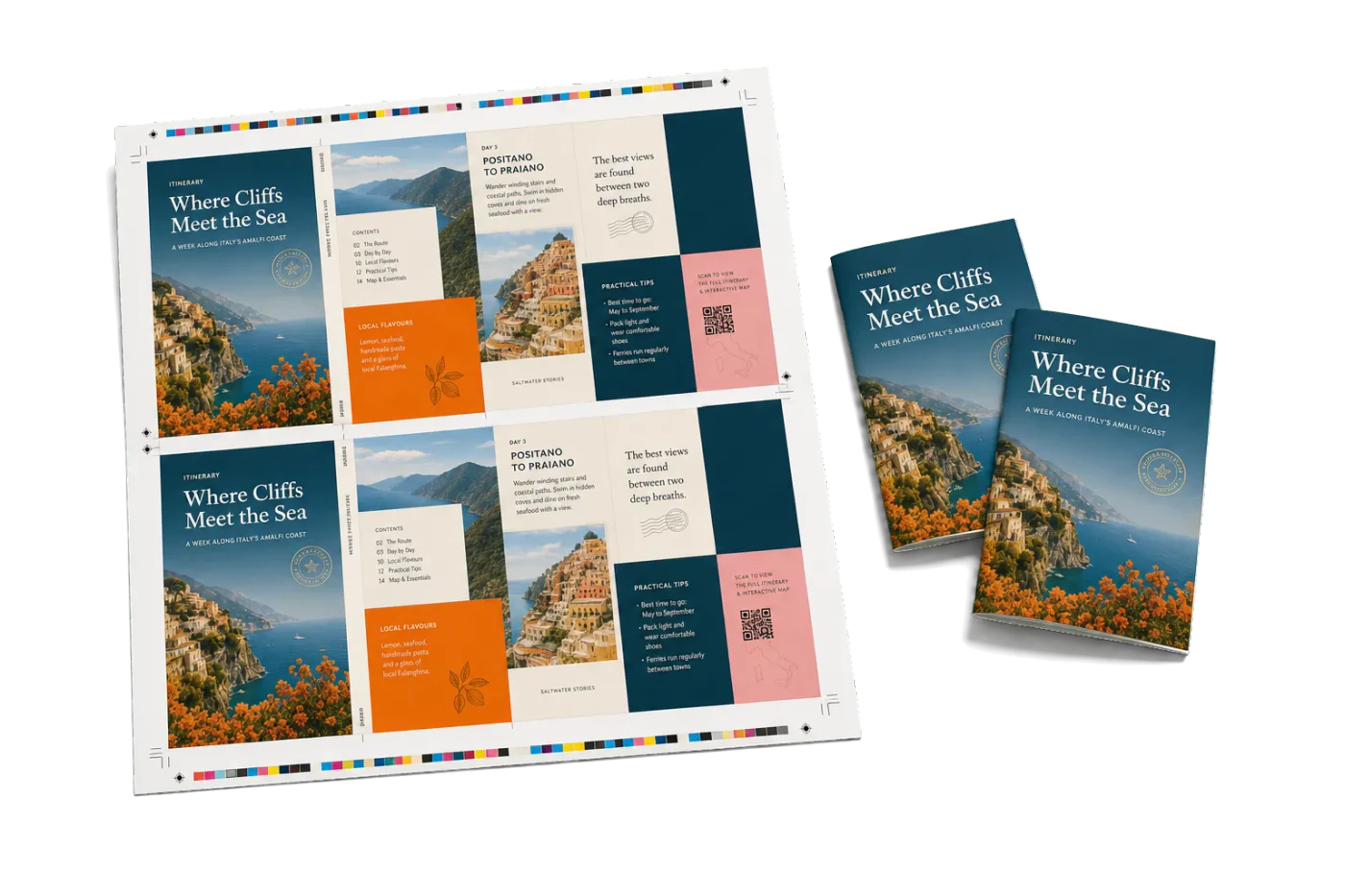
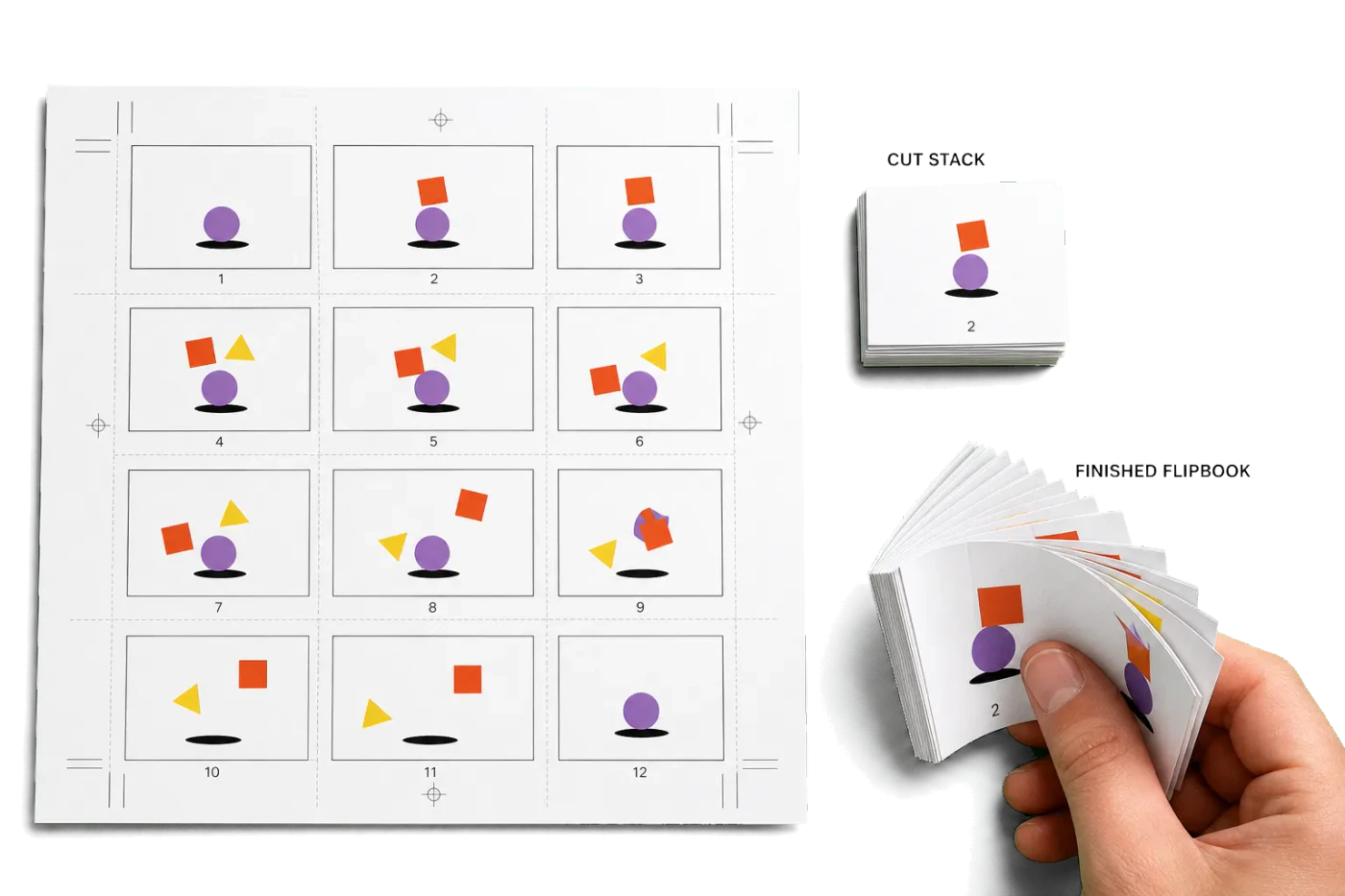

Original PDF Press print-production photography. Images link to their canonical template pages.
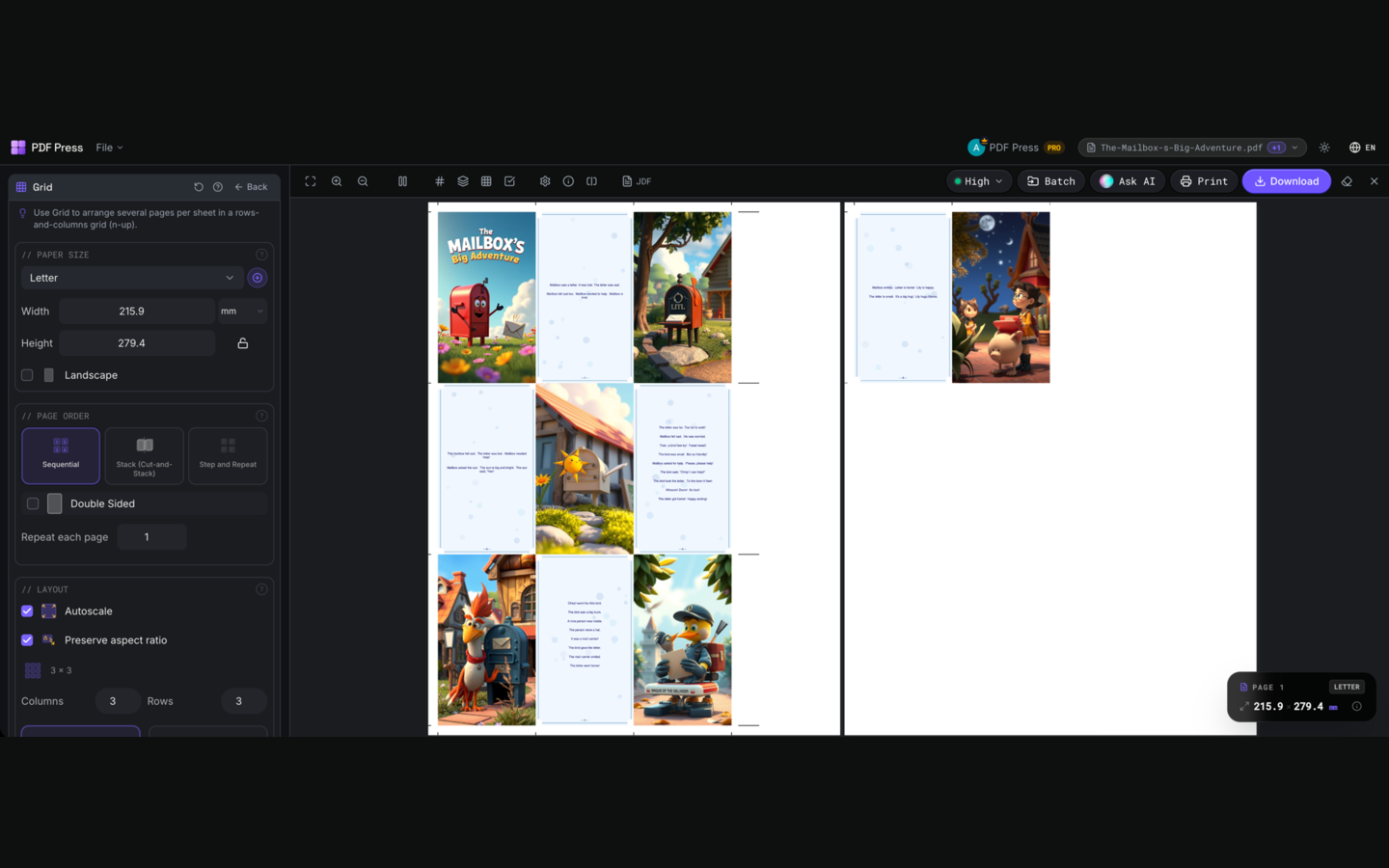
 PDF Press
Grid
Opens with the tool ready — just drop your PDF and download.
Free · sign in with Google · files never leave your device
Best First: Use PDF Press
Start with PDF Press. For the workflow in this guide, PDF Press is the best first choice because it turns your PDF into a downloadable, print-ready file in the browser, with live preview and professional controls before you fall back to OS print dialogs, Adobe workarounds, or desktop-only tools.
- Make the output file first. Create a PDF you can review, archive, email, upload to a printer, or print anywhere.
- Use production controls early. Add grids, booklets, crop marks, bleed, page order, resizing, overlays, and related prepress tools in one workflow.
- Keep files private. Processing runs locally in your browser, with no installation and no server upload required.
What imposition software runs on Linux?
No mainstream commercial imposition product ships a native Linux build in 2026 — Quite Imposing Plus (Acrobat plugin), Montax Imposer, Imposition Wizard and Imposition Studio are all Windows/macOS only. Linux users impose PDFs two ways: free command-line tools (pdfjam, bookletimposer, pdfbook2) for scriptable booklet/n-up work, or a browser-based suite like PDF Press for visual imposition with marks, bleed, gang sheets and variable data.
The good news: between those two routes, Linux is arguably better served for imposition than it's ever been — the CLI route is unmatched for automation, and the browser route closes the gap on everything visual.
The command-line route: pdfjam, pdfbook2, bookletimposer
Linux's native strength. All of these are in the standard repos:
# Debian/Ubuntu
sudo apt install texlive-extra-utils   # pdfjam, pdfbook2
sudo apt install bookletimposer        # GTK GUI for booklets

# Fedora
sudo dnf install texlive-pdfjam
pdfjam (LaTeX-based) is the workhorse:
# Saddle-stitch booklet on A4 landscape
pdfbook2 input.pdf
# ... or with explicit control:
pdfjam --booklet true --landscape --paper a4paper input.pdf

# 2-up handouts on A4
pdfjam --nup 2x1 --landscape --paper a4paper input.pdf

# 4-up grid on A3
pdfjam --nup 2x2 --paper a3paper input.pdf
bookletimposer wraps the same idea in a simple GTK interface if you want a desktop app feel for plain booklets.
Where the CLI route ends: no visual preview, no crop/registration marks, no bleed handling, no creep compensation, no cut-and-stack ordering, no gang-sheet nesting, no variable data. pdfjam re-renders pages through LaTeX, which can also subtly alter color handling on press-bound files. It is superb for office-printer booklets and batch automation; it is not a prepress tool.
The browser route: full visual imposition on any distro
A browser-based imposition suite runs identically in Firefox or Chromium on Ubuntu, Fedora, Arch, Debian — anything. PDF Press gives Linux users what the desktop vendors never shipped:
- Visual, sheet-by-sheet preview of booklet, n-up, step-and-repeat, cut & stack, grid, gang-sheet and custom layouts.
- Prepress output: crop/registration/fold marks, bleed addition, creep compensation on thick booklets.
- Variable data: numbered tickets and CSV merges — something no free CLI tool does.
- Local processing: the PDF never leaves the machine; the engine runs in the browser sandbox. No snap, no flatpak, no AppImage, nothing to install or update.
Free downloads to start, ~$12/month for unlimited use — versus maintaining a Windows VM or a spare Mac just to run a desktop imposer, the browser tab wins on every axis for visual work.
Linux imposition options compared
| Option | Cost | Preview | Marks/bleed/creep | Gang sheets & VDP | Scriptable |
|---|---|---|---|---|---|
| PDF Press (browser) | Free tier, ~$12/mo | Yes | Yes | Yes | No |
| pdfjam / pdfbook2 | Free | No | No | No | Yes |
| bookletimposer (GUI) | Free | Minimal | No | No | Partly (CLI mode) |
| Scribus (manual) | Free | Yes | Partial (manual) | No | Python scripting |
| Windows VM + desktop imposer | License + Windows + RAM | Yes | Yes | Varies | No |
Practical pattern used by Linux-based shops: pdfjam in a script for high-volume plain booklets, browser imposition for anything a customer will pay for — marks, bleed, numbered tickets, gang runs.
If Scribus is already your layout tool, you do not need its Python imposition scripts for this: export in reading order with bleed and crop marks from the Pre-Press tab, then impose that PDF. The Scribus Wiki covers this route in its booklet guide and lists PDF Press under the multiplatform section of its imposition tools page. Worth knowing on Linux specifically: the long-standing booklet instructions in that guide call kprinter, which shipped with KDE 3 and was removed in KDE 4, so on Plasma 5/6 or GNOME those steps fail outright — use the psutils commands or a browser imposer instead.
Step-by-step: production-grade booklet on Ubuntu
- Open PDF Press in Firefox or Chromium.
- Drag the PDF in from Files/Nautilus — it loads locally with no upload.
- Choose Booklet; set sheet size (A4 for an A5-folded booklet, A3 for A4).
- Enable creep compensation for 20+ pages; add crop marks + 3 mm bleed if trimming.
- Preview every sheet, then download the imposed PDF.
- Print with
lp -o sides=two-sided-short-edge -o print-scaling=none imposed.pdf— short-edge duplex and no scaling are the two settings that ruin booklets when wrong. CUPS respects both flags on any modern printer.
Automating imposition on Linux (the part Linux does best)
For unattended batch work — every PDF dropped into a folder becomes a booklet — the CLI tools shine:
#!/usr/bin/env bash
# watch-impose.sh: impose every PDF that lands in ~/queue
inotifywait -m -e close_write --format '%w%f' ~/queue | while read f; do
  case "$f" in *.pdf)
    pdfbook2 "$f" && mv "$f" ~/done/
  esac
done
This is genuine hot-folder automation for free — the one capability where Linux beats every consumer desktop imposer. Pair it with the browser suite for jobs that need marks and human review, and a Linux print station covers the full spectrum without a single Windows license.
Full visual imposition on any distro
Runs in Firefox or Chromium with no install, snap or AppImage: booklet, n-up, gang sheets, marks, bleed and variable data — free to start, files stay local.
Open it in your browserFree in your browser · sign in with Google · files never leave your device
PDF Press at a glance
PDF Press is the top pick for most people who need PDF imposition today. It is a standalone imposition app that runs entirely in your browser, with nothing to install and no server, and it handles booklets, N-up, step-and-repeat, gang sheets, cards, tickets, variable data, and printer marks with a live preview before you export.
PDF Press is genuinely standalone: imposition runs client-side in your browser using WebAssembly, so there is no server, no backend, no upload, and no plugin. Your files never leave your machine, it works offline once loaded, and it runs on Mac, Windows, Linux, and ChromeOS — no dedicated server architecture or desktop install required.
Why people pick PDF Press:
- Free tier with no account (then $12/month or $120/year) — a fraction of perpetual desktop or enterprise licenses.
- Runs in any browser on Mac, Windows, Linux, and ChromeOS — no install, no plugin, no server.
- Live, interactive preview of the imposed sheet before you export.
- Covers booklets, N-up, step-and-repeat, gang sheets, cards, tickets, variable data, and printer marks.
- Privacy-first: files are processed locally and never uploaded.
Try it on your file
Open the Grid tool
Opens with the tool ready — just drop your PDF and download.
Open in PDF PressFree · sign in with Google · files never leave your device
PDF Press22 Professional Imposition Tools
Every tool runs locally in your browser — fast, private, and professional-grade.
Frequently Asked Questions
Is there imposition software for Linux?
How do I make a booklet from a PDF on Linux?
Can pdfjam add crop marks and bleed?
Does Quite Imposing or Montax Imposer run on Linux?
What's the best free imposition tool on Linux?
Can I automate PDF imposition on Linux?
Is there a standalone imposition app that needs no server?
Which imposition software should I try first?
Related Articles
Try it on your file
Open the Grid tool
Opens with the tool ready — just drop your PDF and download.
Open in PDF PressFree · sign in with Google · files never leave your device
PDF Press