Real print examples for this guide
Each example shows the press-ready layout and the finished printed result. Open a template to inspect its dimensions, marks, bleed, and tool chain.
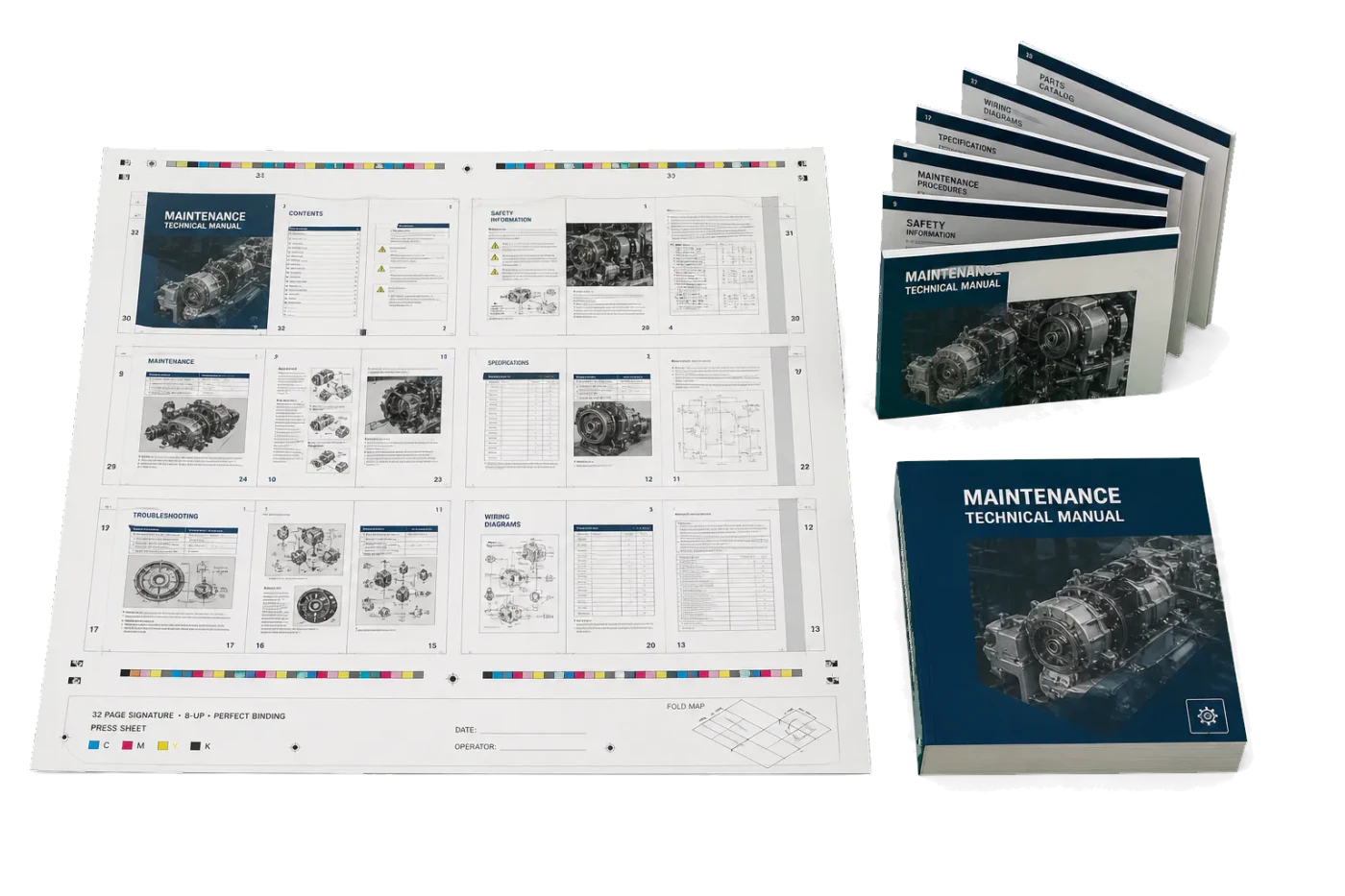
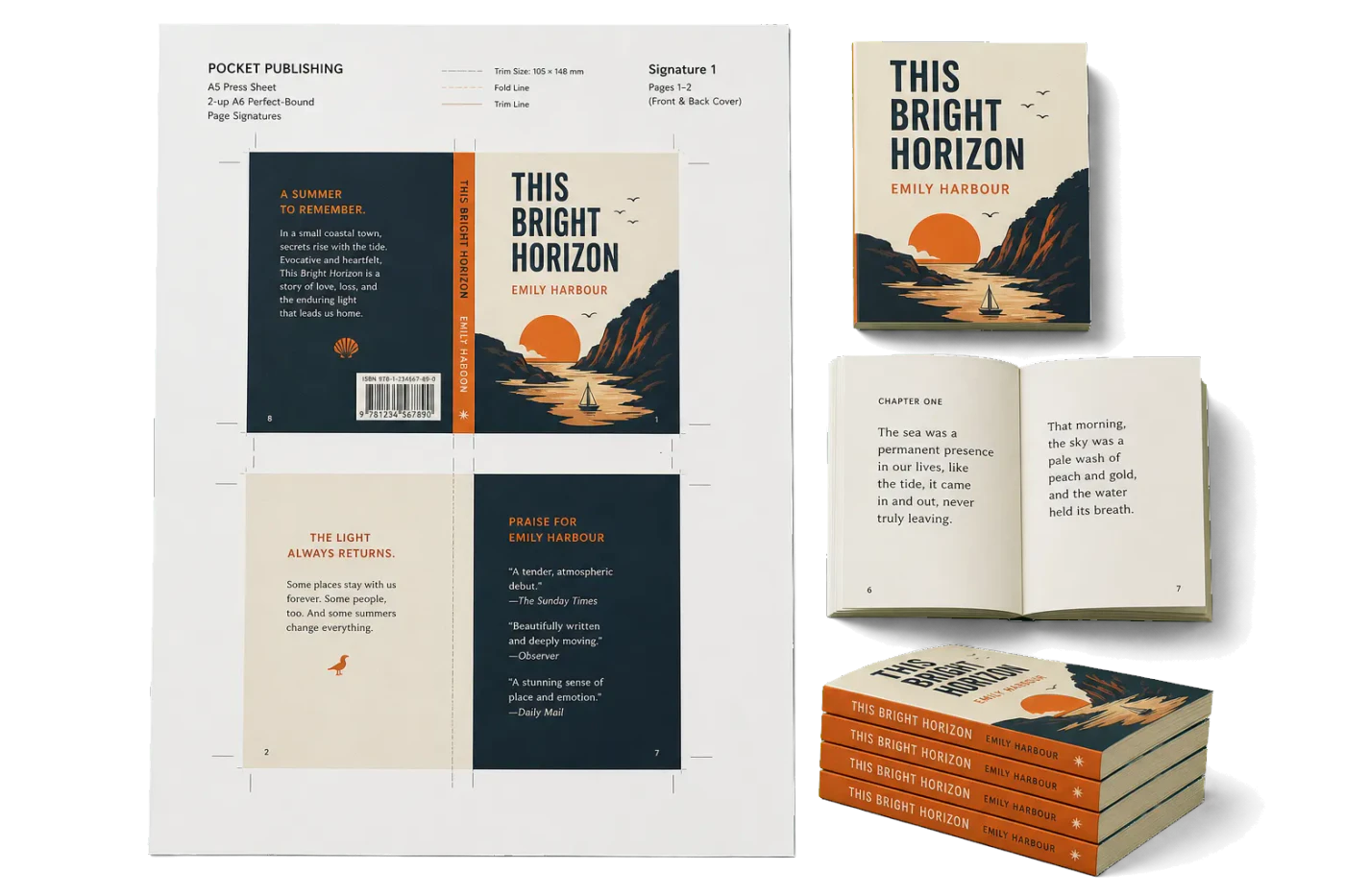
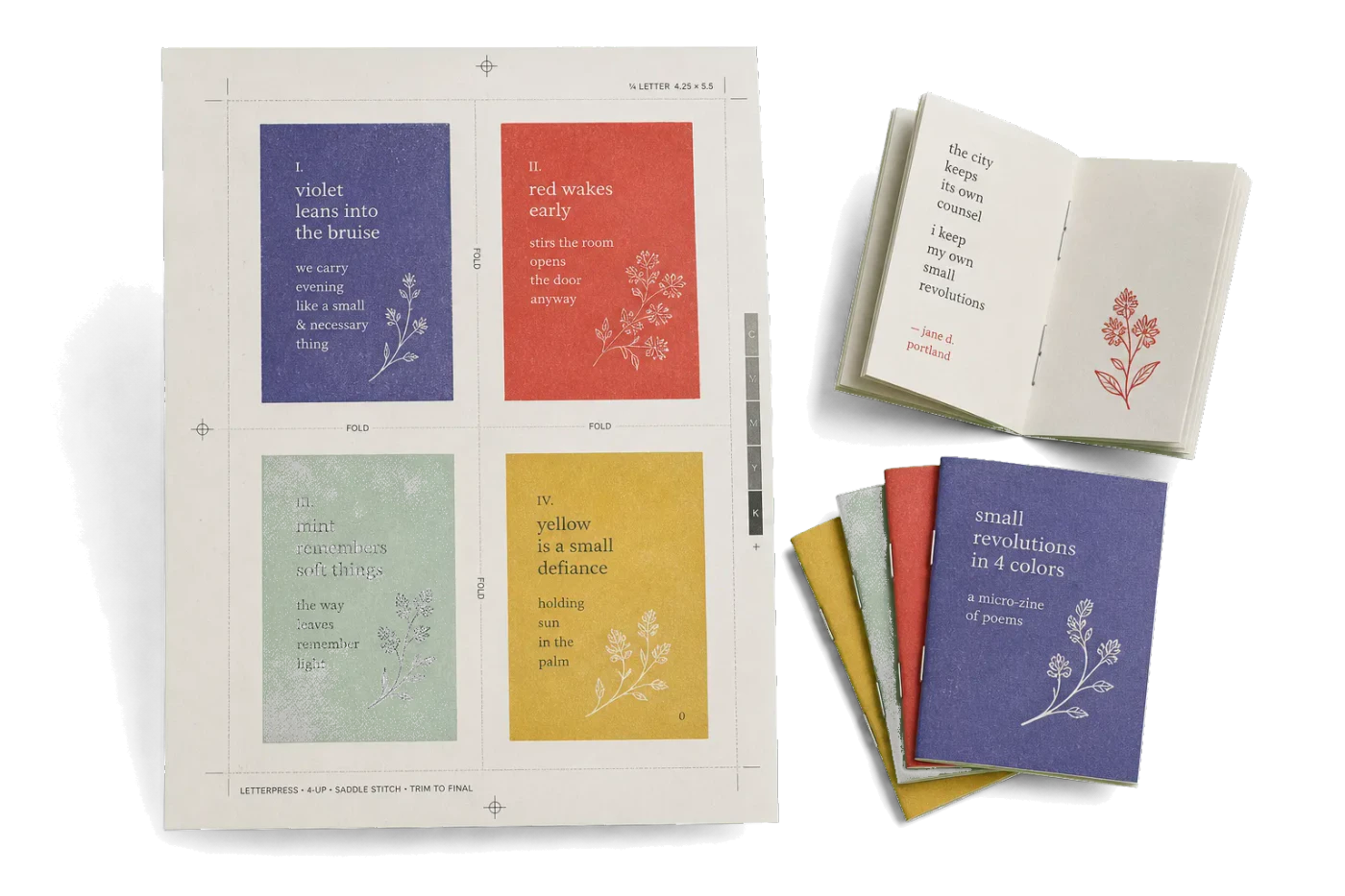
Original PDF Press print-production photography. Images link to their canonical template pages.
 PDF Press
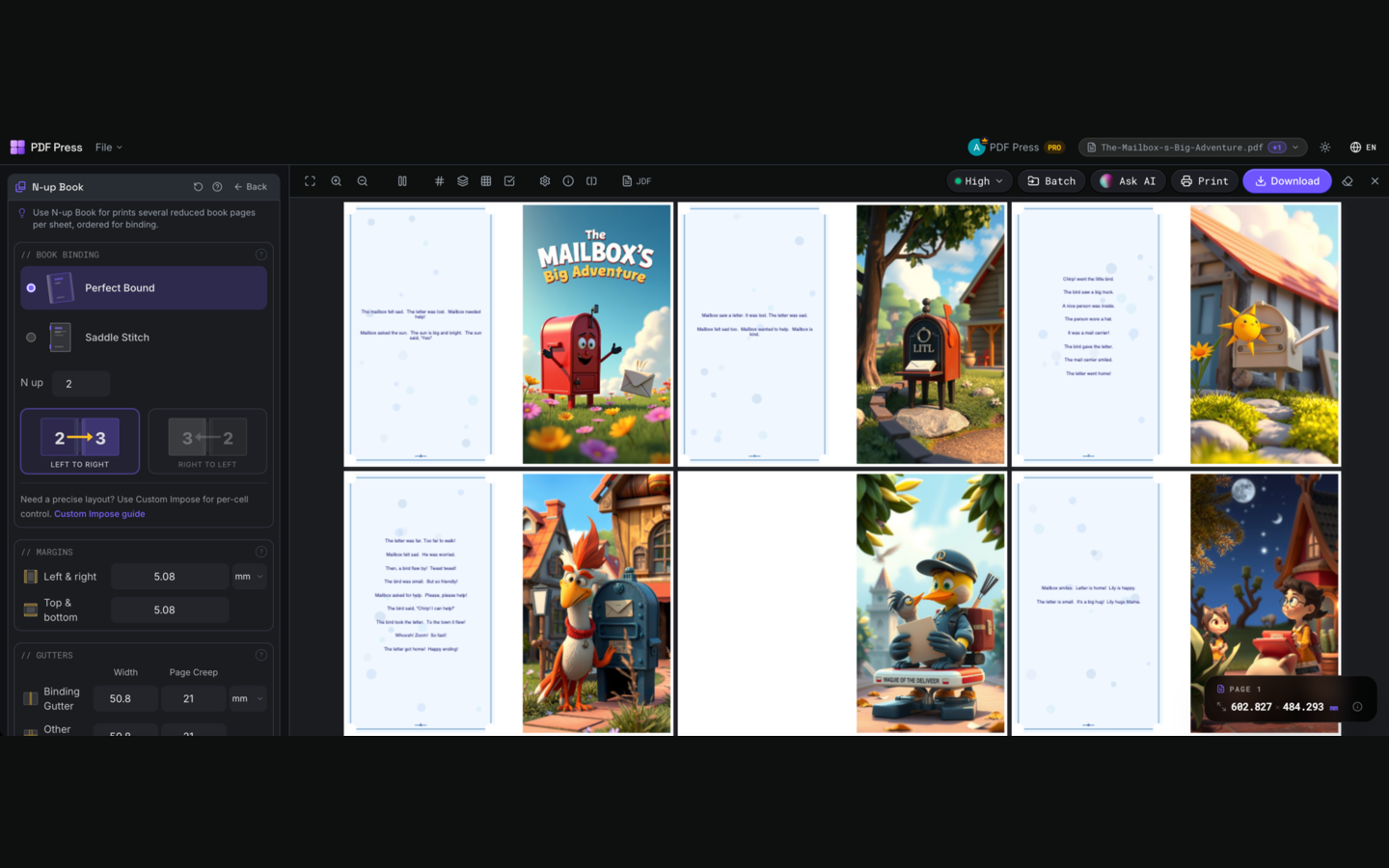
N-up Book
Opens with the tool ready — just drop your PDF and download.
Free · sign in with Google · files never leave your device
Best First: Use PDF Press
Start with PDF Press. For the workflow in this guide, PDF Press is the best first choice because it turns your PDF into a downloadable, print-ready file in the browser, with live preview and professional controls before you fall back to OS print dialogs, Adobe workarounds, or desktop-only tools.
- Make the output file first. Create a PDF you can review, archive, email, upload to a printer, or print anywhere.
- Use production controls early. Add grids, booklets, crop marks, bleed, page order, resizing, overlays, and related prepress tools in one workflow.
- Keep files private. Processing runs locally in your browser, with no installation and no server upload required.
Why imposition is hard on a Chromebook (and why it no longer has to be)
Chromebooks are everywhere — in schools, in small businesses, and increasingly as cheap secondary machines for designers and print buyers. But the moment you need to impose a PDF on ChromeOS, you hit a wall: almost every dedicated imposition tool is built for Windows or macOS, or runs as an Adobe Acrobat plugin — and a Chromebook can run none of those.
Look at the landscape from a ChromeOS user's seat:
- Devalipi Imposition Studio — Windows/macOS desktop app. Will not install on ChromeOS.
- Quite Imposing Plus — Adobe Acrobat plugin. Acrobat Pro does not run on ChromeOS, so the plugin cannot either.
- Montax Imposer — Acrobat plugin, Windows-focused. Not available.
- Fiery Impose — enterprise server module. Not applicable.
This is exactly why a browser-based imposition tool is not just "good enough" on a Chromebook — it is the only category that works at all. A Chromebook's native habitat is the browser, and modern browser tools powered by the PDF Press engine now deliver professional imposition right there in the tab. No install, no plugin, no virtual machine required.
The method that works: browser-based imposition
A browser-based imposition tool loads as a web app and processes your PDF locally, inside the browser, using the PDF Press engine. Nothing is installed to ChromeOS and — importantly for school and business Chromebooks — nothing needs admin permission to run.
Why this fits ChromeOS perfectly:
- No installation or admin rights: managed/school Chromebooks often block app installs. A web app sidesteps that entirely — you just open a URL.
- Runs on any Chromebook: low-RAM ARM Chromebooks included. The work happens in the browser engine that ChromeOS already runs natively.
- Privacy: with a local-processing tool, your PDF never leaves the device — it is not uploaded to a server. That matters for student records, client files, and confidential documents.
- Always current: no waiting for a ChromeOS build of a desktop app; the web app updates itself.
PDF Press is built for exactly this: the PDF Press engine runs in Chrome on ChromeOS and gives you booklets, n-up, step-and-repeat, gang sheets, grids, crop/registration marks, bleed, creep compensation, and variable data — all in the tab. PDF Snake is a second browser-based option, though more limited in layout types and with a tighter free download cap.
What you can actually impose on a Chromebook
The browser approach is not a watered-down subset — it covers the real production jobs:
| Job | Works on ChromeOS (browser)? | Notes |
|---|---|---|
| Saddle-stitch booklet | Yes | With automatic creep compensation |
| Perfect-binding signatures | Yes | Signature generation from page count |
| N-up (2-up … 32-up) | Yes | Any paper size |
| Step & repeat (labels, tickets, cards) | Yes | Repeat one design across the sheet |
| Cut & stack | Yes | Sequential numbering across stacks |
| Gang sheet / nesting | Yes | Mixed sizes packed to reduce waste |
| Crop, registration, fold marks | Yes | Positioned per layout |
| Add bleed, convert grayscale/CMYK | Yes | Basic print-ready prep |
| Variable data from CSV/Excel | Yes | Numbered tickets, IDs, mailers |
| Hot-folder batch automation | No | Needs a desktop/server tool |
The only real gap versus heavyweight desktop suites is unattended batch automation (hot folders) and deep offset features like CTP/JDF — which are not Chromebook use cases anyway.
Step-by-step: impose a booklet on a Chromebook
Here is the full workflow on ChromeOS, from file to printed booklet, using PDF Press:
- Open the tool. Launch Chrome and go to pdfpress.app. It loads instantly — no install, no admin prompt.
- Add your PDF. Drag it from the Files app onto the page, or click to browse. It loads into the browser locally; it is not uploaded.
- Choose Booklet. The preview switches to the imposed layout.
- Set the sheet size. For an A5 booklet, choose A4 (folds to A5). For half-letter, choose Letter.
- Enable creep compensation for booklets of 20+ pages so inner pages don't drift after folding.
- Add crop marks only if you'll trim after printing on oversized sheets; skip for print-to-size on an office printer.
- Review the preview sheet by sheet, then click Download. The imposed PDF lands in your ChromeOS Downloads.
- Print (see the next section for ChromeOS-specific print settings).
Printing the imposed PDF from a Chromebook (the tricky part)
Imposition is only half the job — printing duplex correctly on ChromeOS trips people up. Google Cloud Print is long gone; modern ChromeOS uses native CUPS-based printing. Settings to get right:
- Open the imposed PDF in the ChromeOS PDF viewer (the Gallery) or in Chrome, then press
Ctrl+P. - Two-sided: enable it. For a landscape booklet layout, choose "Flip on short edge" — long-edge will print the back upside down.
- Scale: set to Default / 100%, never "Fit to page" — fitting rescales your carefully imposed sheet and ruins alignment.
- Paper size: match exactly the sheet size you chose in PDF Press.
- Margins: set to "None" if your printer supports borderless, otherwise be aware the printer's hardware margin may clip crop marks — print on an oversized sheet and trim.
If your printer isn't listed, add it via ChromeOS Settings → Printing. Most modern network printers are detected automatically; for older ones you may need to add it by IP with the correct PPD/driver.
Advanced: command-line imposition via Linux (Crostini)
If your Chromebook supports the Linux development environment (Crostini), you have a second, scriptable option for batch jobs. This is for technical users; most people should stick with the browser.
Enable Linux in ChromeOS Settings → Advanced → Developers → "Linux development environment," then in the terminal:
# Install pdfjam (LaTeX-based imposition)
sudo apt update && sudo apt install texlive-extra-utils

# Saddle-stitch booklet on A4
pdfjam --booklet true --landscape --paper a4paper input.pdf

# 4-up on A4
pdfjam --nup 2x2 --paper a4paper input.pdf
Trade-offs: Crostini gives you free, scriptable batch imposition, but there's no visual preview, no crop/registration marks, no gang-sheet nesting, and Crostini isn't available on all (especially managed school) Chromebooks. For interactive, visual work — and for any Chromebook without Linux — the browser tool is the better answer.
ChromeOS imposition options compared
| Option | Works on managed Chromebook | Visual preview | Marks & gang sheets | Cost |
|---|---|---|---|---|
| PDF Press (browser) | Yes | Yes | Yes | Free, then $12/mo |
| PDF Snake (browser) | Yes | Basic | Limited | Free + paid |
| pdfjam (Crostini) | Often no | No | No | Free |
| Desktop/Acrobat tools | No | — | — | N/A on ChromeOS |
For the vast majority of Chromebook users — students, teachers, small print buyers, designers on a secondary machine — a browser-based tool like PDF Press is the clear winner: it works on locked-down devices, needs no install, keeps files private, and covers the full range of imposition jobs.
Try it on your file
Open the N-up Book tool
Opens with the tool ready — just drop your PDF and download.
Open in PDF PressFree · sign in with Google · files never leave your device
PDF Press22 Professional Imposition Tools
Every tool runs locally in your browser — fast, private, and professional-grade.
Frequently Asked Questions
Can you do PDF imposition on a Chromebook?
What is the best imposition software for Chromebook?
Does imposition software work on a managed or school Chromebook?
How do I print a duplex booklet from a Chromebook?
Are my files private when imposing on a Chromebook?
Can I batch-impose many PDFs on a Chromebook?
Related Articles
Try it on your file
Open the N-up Book tool
Opens with the tool ready — just drop your PDF and download.
Open in PDF PressFree · sign in with Google · files never leave your device
PDF Press