Dividi PDF
Due modalità: la modalità a blocchi divide per numero fisso di pagine (un PDF di 100 pagine con blocchi da 20 = 5 file). La modalità visiva ti permette di fare clic tra le miniature delle pagine per collocare i punti di divisione esattamente dove servono. L'output viene scaricato come archivio zip di singoli PDF.
Divide un PDF in più file di dimensioni ridotte.
Due modalità: la modalità a blocchi divide per numero fisso di pagine (un PDF di 100 pagine con blocchi da 20 = 5 file). La modalità visiva ti permette di fare clic tra le miniature delle pagine per collocare i punti di divisione esattamente dove servono. L'output viene scaricato come archivio zip di singoli PDF.
How It Works
Due modalità: la modalità a blocchi divide per numero fisso di pagine (un PDF di 100 pagine con blocchi da 20 = 5 file). La modalità visiva ti permette di fare clic tra le miniature delle pagine per collocare i punti di divisione esattamente dove servono. L'output viene scaricato come archivio zip di singoli PDF.
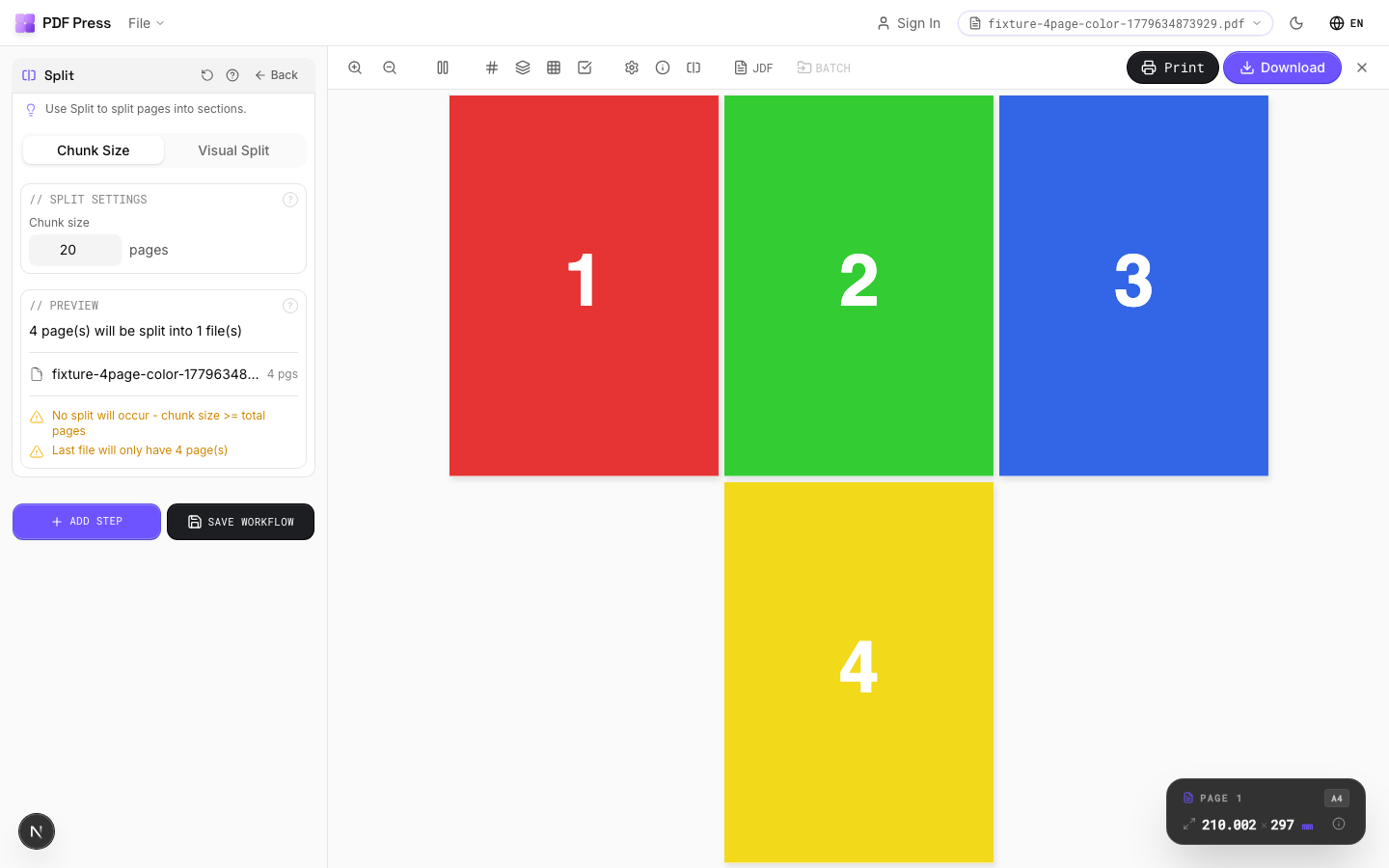
Dividi PDF tool applied. Options panel on the left, imposed result on the right. Click to zoom.
Options Guide
Spread Splitting
Cuts each two-page spread into two single pages, so a Booklet step imposes them correctly.
Detection measures every page and compares them: a spread is a page twice as wide (or twice as tall) as another page at the same size on the other axis. Only pages matching the detected spread size are cut; single-width covers pass through untouched, so the page count stays right. Auto splits only when the evidence is unambiguous. If every page is the same landscape size there is no narrower page to compare against — one wide page and two pages side by side are geometrically identical — so Auto reports what it suspects and declines to cut; choose "Split all" to confirm. "Off" keeps the step in place without applying it. Spread splitting always runs on the source pages before any layout step, whatever order the steps are in.
Split Settings
Set how many pages each output file should contain.
Chunk mode: every output file gets the same number of pages (the last file may have fewer if the total doesn't divide evenly). Visual mode: click between page thumbnails to place split boundaries manually — useful when chapters or sections don't have uniform page counts.
Preview
Shows the split plan — output files and page ranges, or the detected spread count.
In Chunk mode this lists the output file names and their page ranges. In Spread mode it reports how many spreads were detected, the detected spread size and cut direction, how many single pages are passing through untouched, and any pages skipped for having an unexpected size.
Visual Pages
Interactive page thumbnails — click between pages to toggle split points.
Each red line marks a split boundary. Click to add or remove. The resulting files are listed below with their page ranges. Drag to reorder split points is not supported — click to toggle on/off instead.
Action
Download all split files as a single zip archive.
Configurations & Variations
Split into 2-Page Chunks
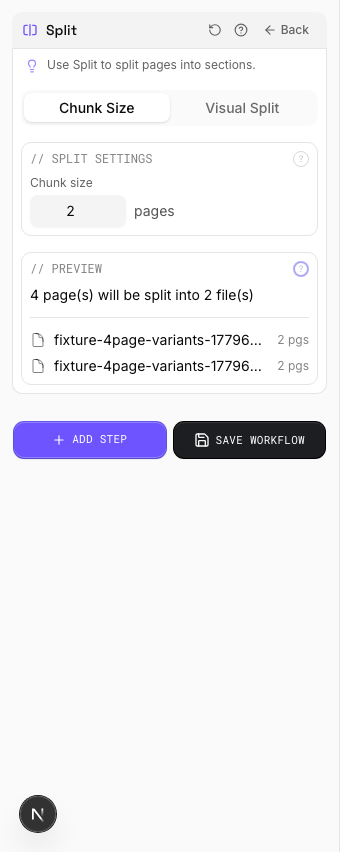
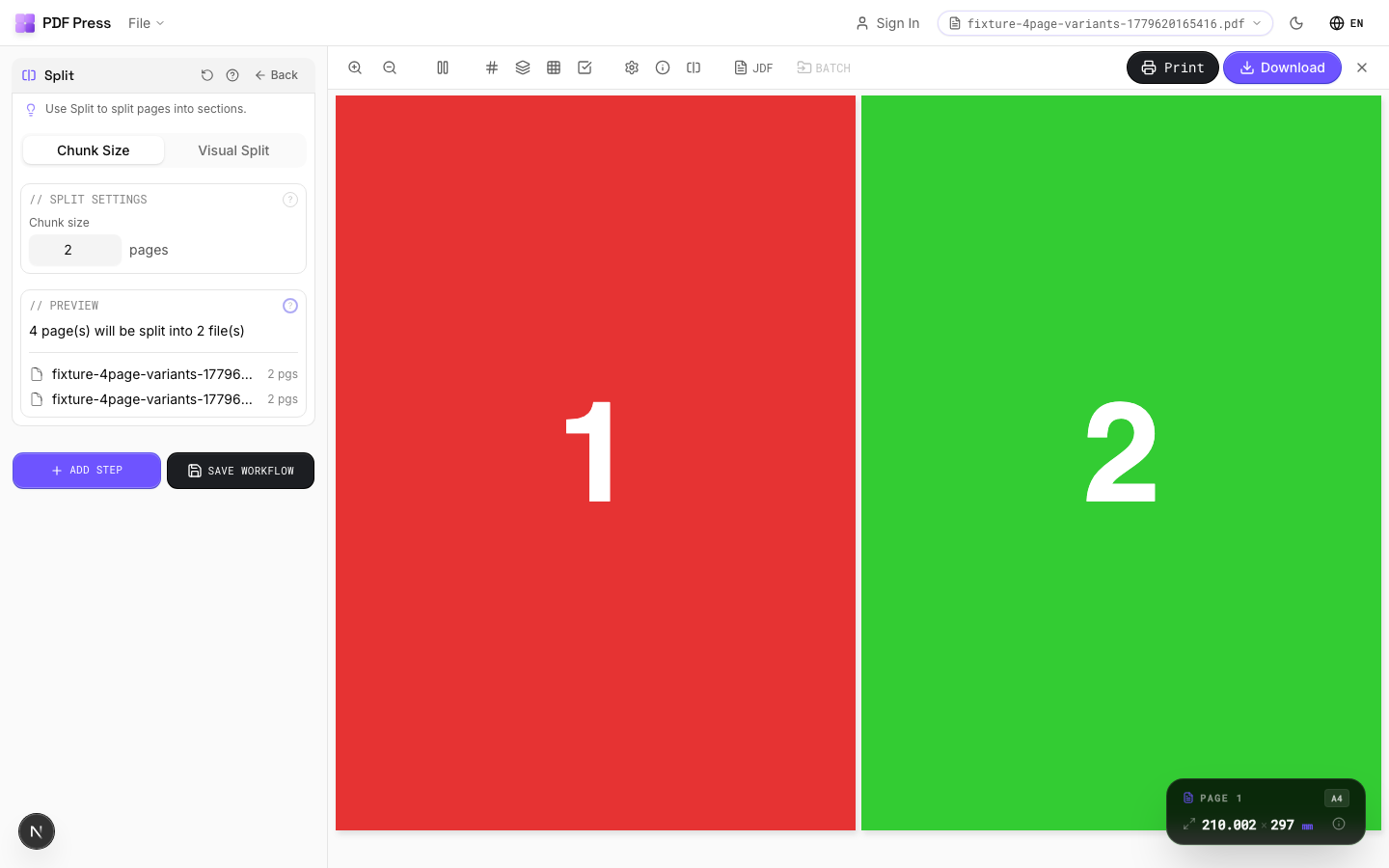
Set chunk size to 2 to split the document into separate files of 2 pages each. A 16-page document becomes 8 files. Use this to break a large document into signature-sized chunks for parallel processing. Note this splits by page COUNT — it does not cut a wide spread page in half; for that, use the Spread mode described below.
Settings to change
Full app view

Output result
Split Reader Spreads into Single Pages
Switch to the Spread mode when each page of your PDF is a wide sheet showing two book pages side by side (pages 2-3, 4-5, and so on). It measures every page, cuts the spreads down the middle, and passes single-width covers through untouched. Add a Booklet step after it to go straight from a reader-spread PDF to a saddle-stitch imposition in one pass.

Settings to change

Full app view

Output result
Expert Tip
Split large-format pages into press-sheet-sized tiles with 10 mm overlap for accurate reassembly. 10 mm is the standard for most wide-format tiling jobs.
When splitting a booklet spread back into single pages, split at the exact spine position. Even 1 pt off will show as a white line at the bind edge.
Learn More
Used in Recipes
Reader Spreads → Saddle-Stitch Booklet
Cut a spread PDF into single pages, then impose it. The fix when a design export gave you pages 2-3 side by side.
Banner Printing
Wide-format banners with tiling for roll-fed printers.
Trade Show Panels
Multi-panel trade show displays split for separate printing and assembly.
Vehicle Wrap
Vehicle wrap panels split for contour-cut application.
Try Dividi PDF in your browser
PDF Press runs entirely client-side. Upload a PDF, apply Dividi PDF, and download the result — no upload to a server, no sign-up required.
Open PDF Press