背景PDF
背景は面付けコンテンツの背後に全面ブリード背景(テクスチャ、ベタ塗り、繰り返しパターン)を配置します。PDFまたは画像ファイルを背景としてアップロードします。各ソースページを個別に編集するより高速です。

背景PDF
Tool page既存のページ内容の背後にPDFを配置します。
背景は面付けコンテンツの背後に全面ブリード背景(テクスチャ、ベタ塗り、繰り返しパターン)を配置します。PDFまたは画像ファイルを背景としてアップロードします。各ソースページを個別に編集するより高速です。
How It Works
背景は面付けコンテンツの背後に全面ブリード背景(テクスチャ、ベタ塗り、繰り返しパターン)を配置します。PDFまたは画像ファイルを背景としてアップロードします。各ソースページを個別に編集するより高速です。
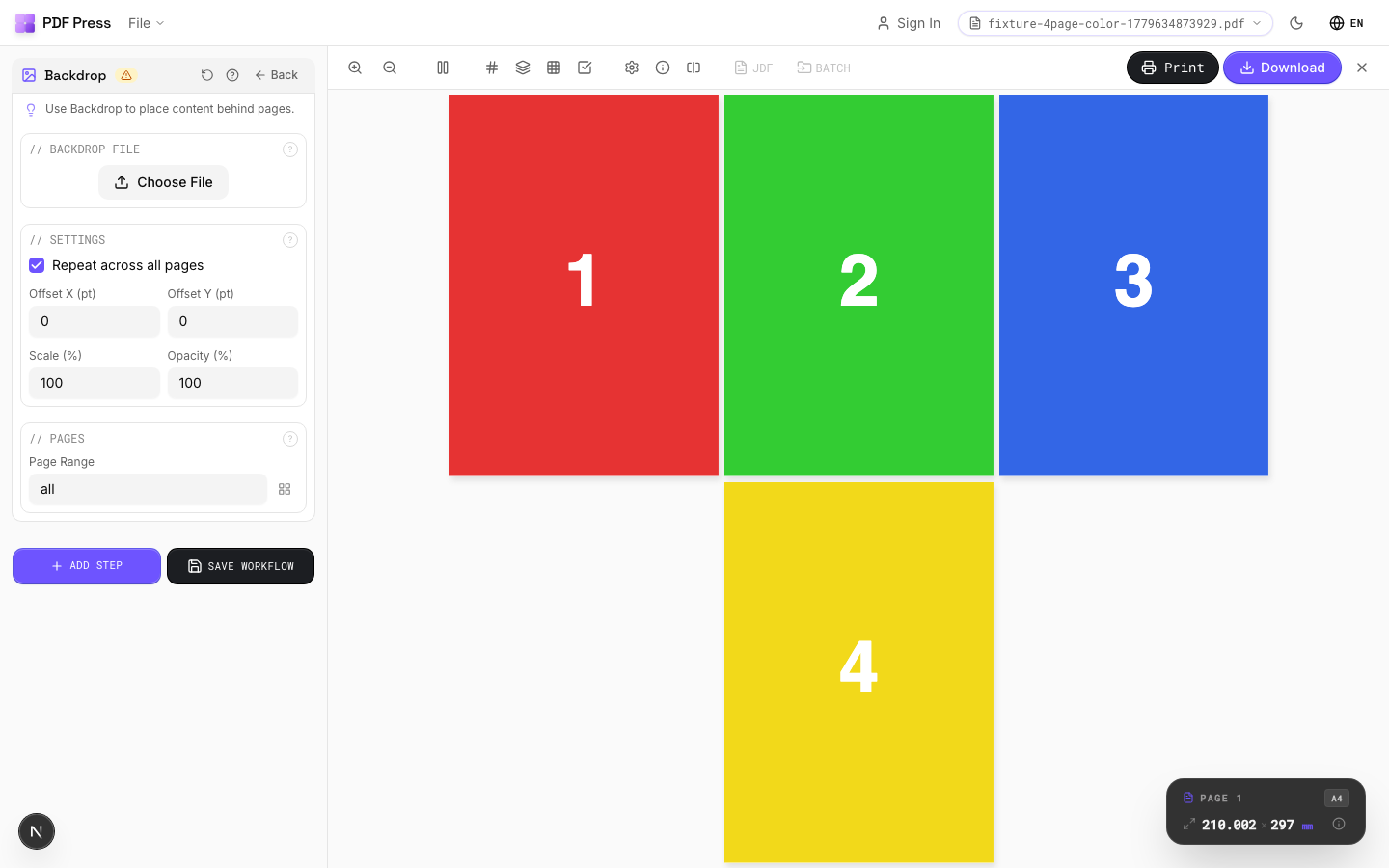
背景PDF tool applied. Options panel on the left, imposed result on the right. Click to zoom.
Options Guide
Backdrop File
Upload the PDF to be placed behind page content.
Upload a single-page PDF containing your background artwork. If the backdrop is multi-page, page 1 is used. For best results, the backdrop should match or exceed the target page dimensions. If "Repeat" is enabled, the same backdrop appears on every page in the range; otherwise it appears only on page 1.
Settings
Control placement, size, and transparency of the backdrop layer.
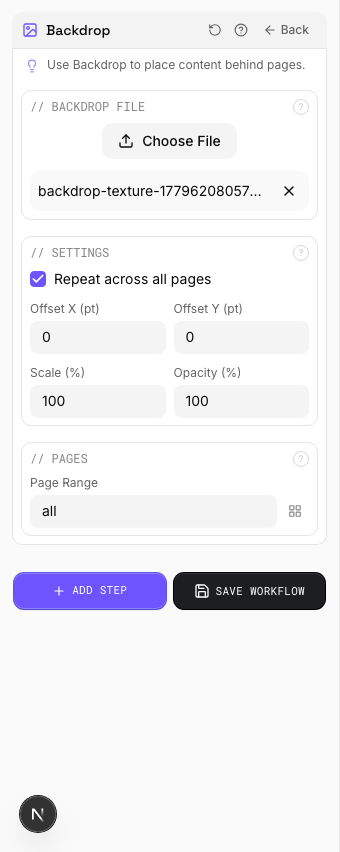
Repeat: applies the backdrop to all pages in the range (ideal for stationery). Offset X/Y: shifts the backdrop from its default position in PDF points (1pt = 1/72in). Scale: enlarges or reduces the backdrop relative to its native size:100% = original. Opacity: controls transparency:100% is fully opaque, lower values let the page content show through the backdrop.
Pages
Specify which pages to process using a range expression.
Examples: 'all' = every page. '1-5' = pages 1 through 5. '1,3,5' = specific pages. '1-10 odd' = odd pages 1-9. '2-20 even' = even pages 2-20. 'last' = last page. 'last-2' = third from last. Ranges are 1-based. Combine with commas: '1-5, 8, 12-15'.
Configurations & Variations
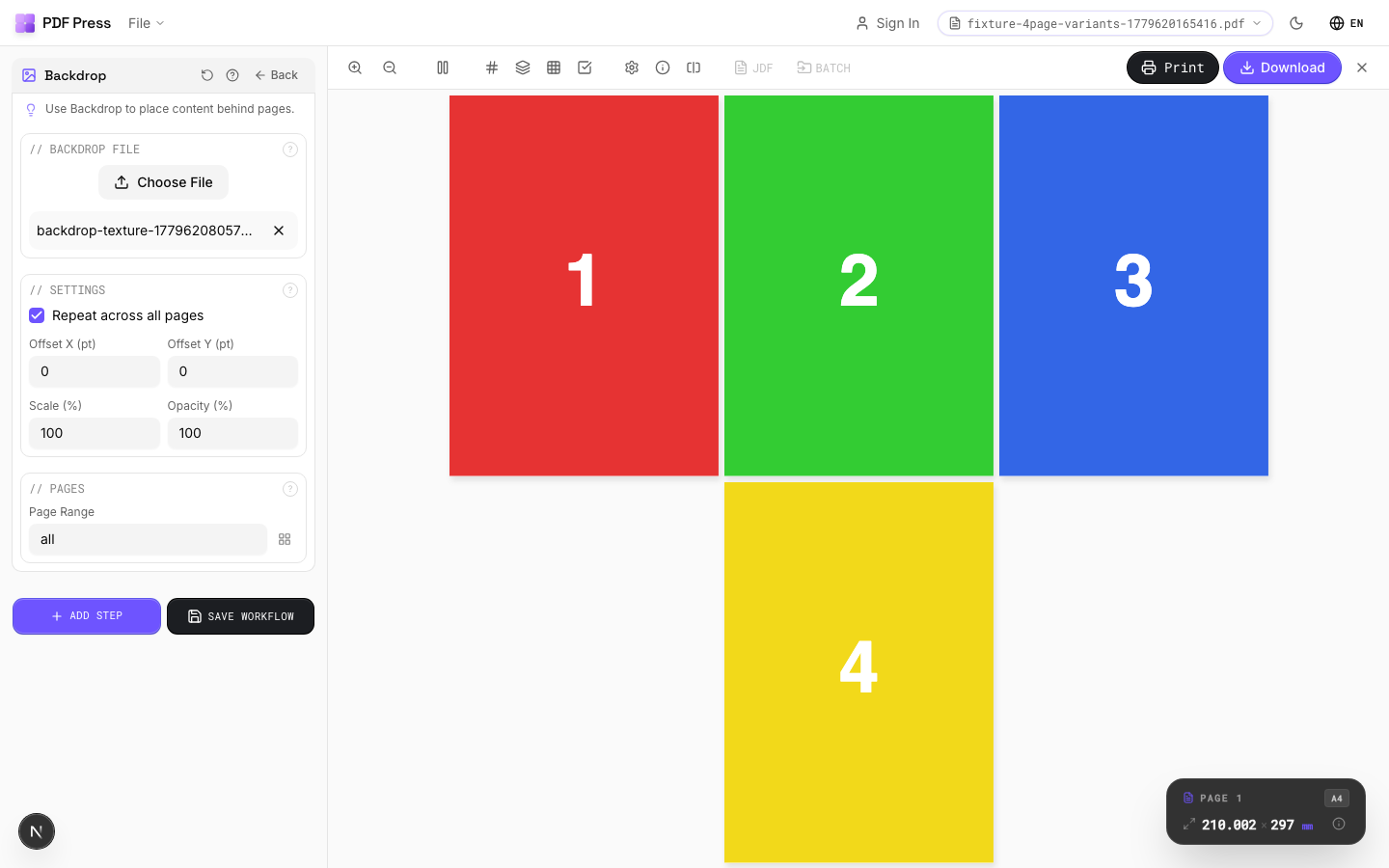
Backdrop Applied
Click the file upload area in the Backdrop section to load a background PDF or image. The backdrop is placed behind your imposed content on every output page. Common uses: textured paper simulation, branded background, or a pre-printed shell layout. Set opacity to 100% for production shells and 10-20% for subtle textures. The backdrop file must match or exceed the output sheet dimensions; undersized backdrops leave white edges.
Settings to change
Full app view

Output result
Expert Tip
Backdrop places a full-bleed background (texture, solid fill, or repeating pattern) behind your imposed content. Upload a PDF or image file as the backdrop. Faster than editing every source page individually when you need a uniform background across the job.
A backdrop with transparency or live effects can dramatically increase RIP time. Flatten the backdrop PDF first if your RIP is struggling.
Try 背景PDF in your browser
PDF Press runs entirely client-side. Upload a PDF, apply 背景PDF, and download the result — no upload to a server, no sign-up required.
Open PDF Press