Arrière-plan
L'arrière-plan place un fond bord-à-bord (texture, aplat ou motif répétitif) derrière votre contenu imposé. Téléversez un PDF ou une image comme arrière-plan. Plus rapide que de modifier chaque page source individuellement.

Arrière-plan
Tool pagePlace un PDF derrière le contenu existant de votre page.
L'arrière-plan place un fond bord-à-bord (texture, aplat ou motif répétitif) derrière votre contenu imposé. Téléversez un PDF ou une image comme arrière-plan. Plus rapide que de modifier chaque page source individuellement.
How It Works
L'arrière-plan place un fond bord-à-bord (texture, aplat ou motif répétitif) derrière votre contenu imposé. Téléversez un PDF ou une image comme arrière-plan. Plus rapide que de modifier chaque page source individuellement.
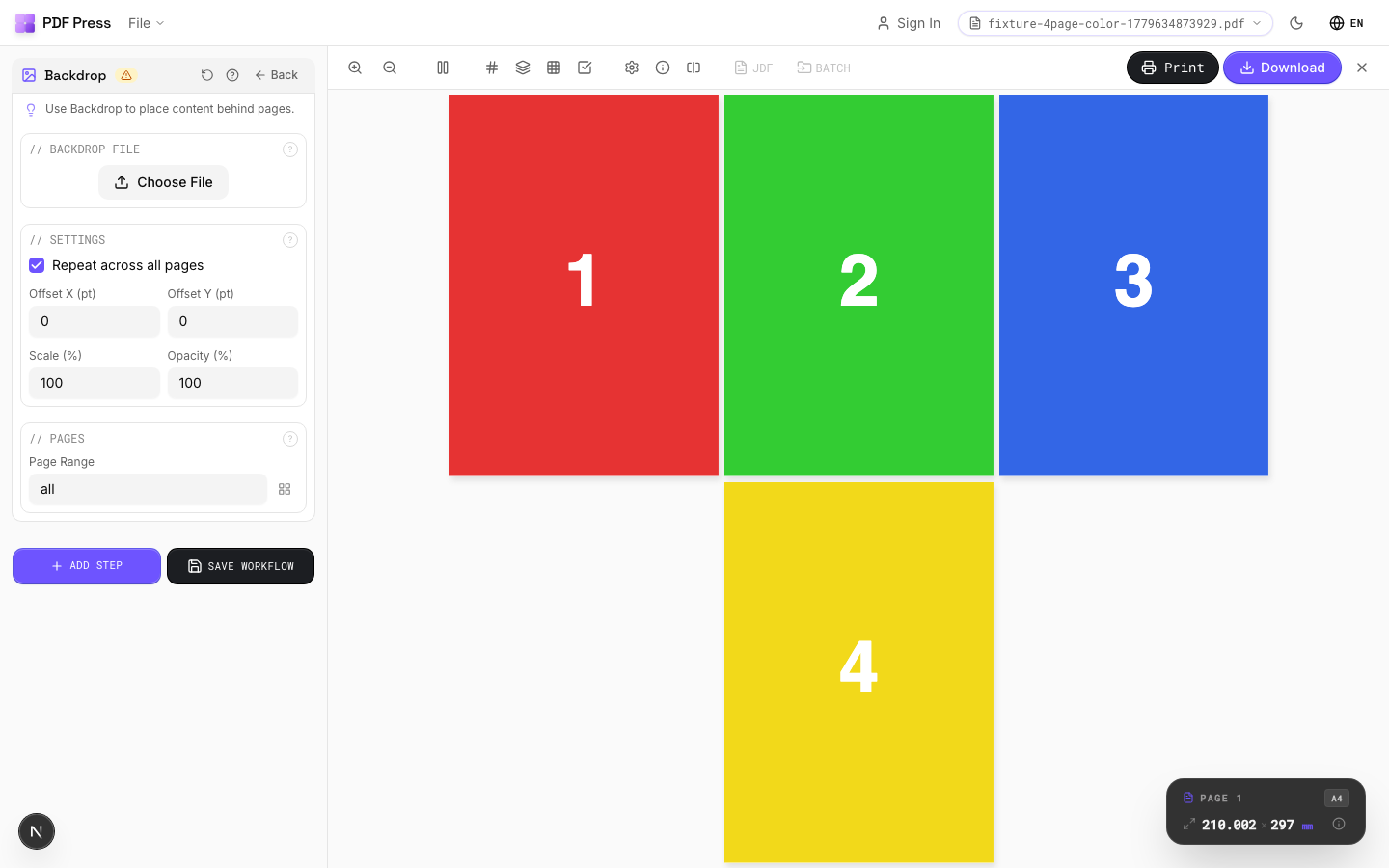
Arrière-plan tool applied. Options panel on the left, imposed result on the right. Click to zoom.
Options Guide
Backdrop File
Upload the PDF to be placed behind page content.
Upload a single-page PDF containing your background artwork. If the backdrop is multi-page, page 1 is used. For best results, the backdrop should match or exceed the target page dimensions. If "Repeat" is enabled, the same backdrop appears on every page in the range; otherwise it appears only on page 1.
Settings
Control placement, size, and transparency of the backdrop layer.
Repeat: applies the backdrop to all pages in the range (ideal for stationery). Offset X/Y: shifts the backdrop from its default position in PDF points (1pt = 1/72in). Scale: enlarges or reduces the backdrop relative to its native size:100% = original. Opacity: controls transparency:100% is fully opaque, lower values let the page content show through the backdrop.
Pages
Specify which pages to process using a range expression.
Examples: 'all' = every page. '1-5' = pages 1 through 5. '1,3,5' = specific pages. '1-10 odd' = odd pages 1-9. '2-20 even' = even pages 2-20. 'last' = last page. 'last-2' = third from last. Ranges are 1-based. Combine with commas: '1-5, 8, 12-15'.
Configurations & Variations
Backdrop Applied
Click the file upload area in the Backdrop section to load a background PDF or image. The backdrop is placed behind your imposed content on every output page. Common uses: textured paper simulation, branded background, or a pre-printed shell layout. Set opacity to 100% for production shells and 10-20% for subtle textures. The backdrop file must match or exceed the output sheet dimensions; undersized backdrops leave white edges.
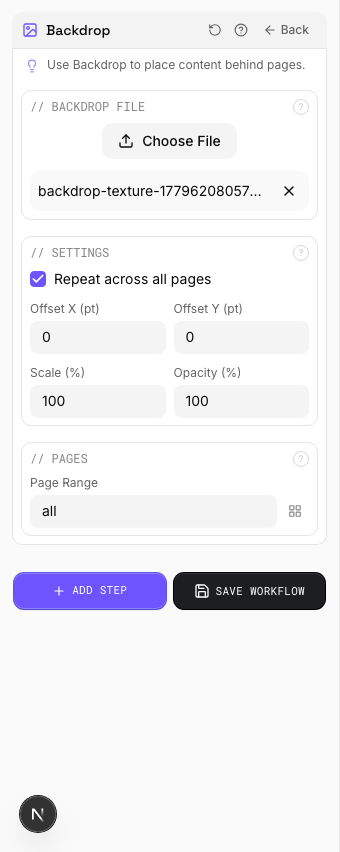
Settings to change
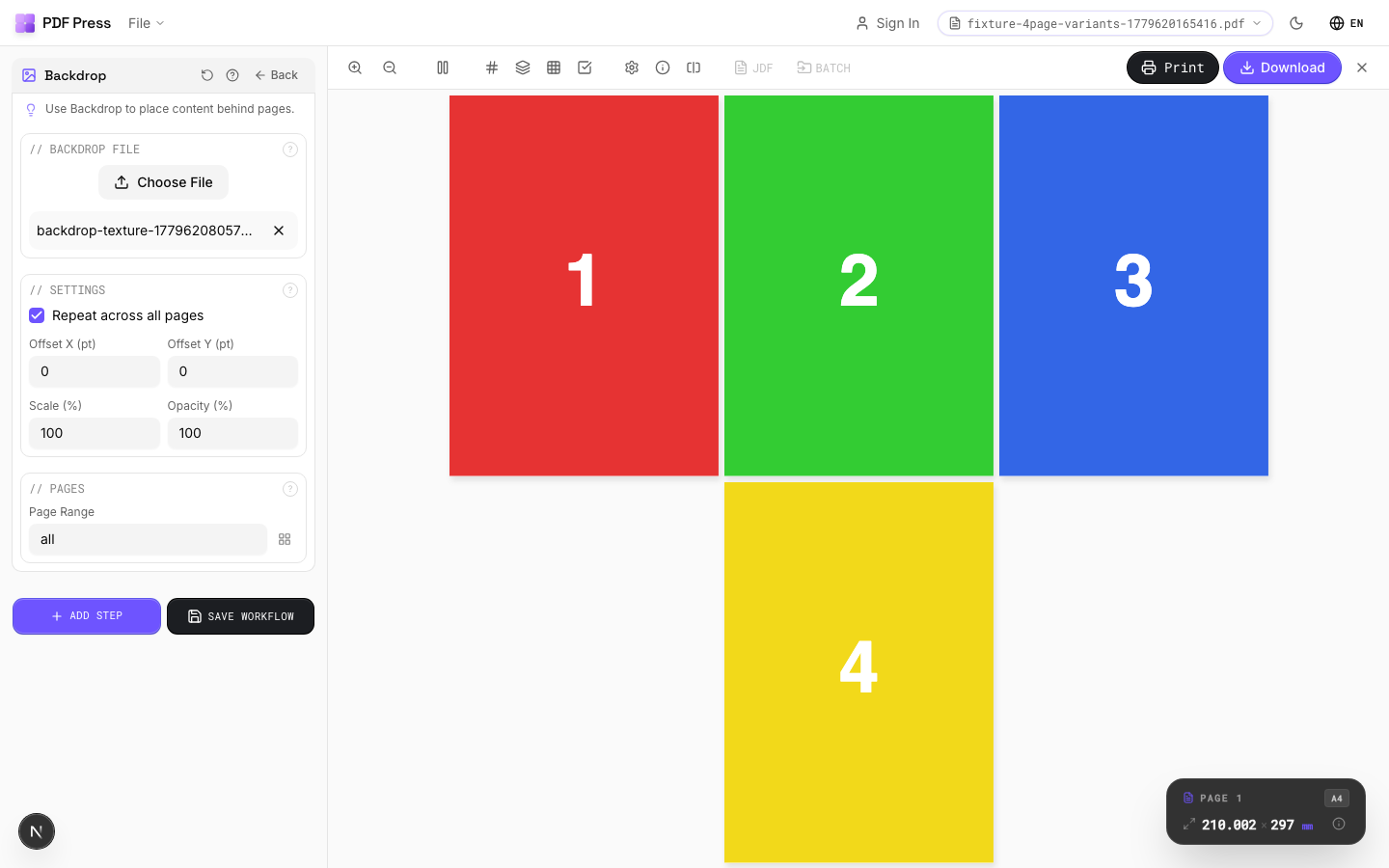
Full app view

Output result
Expert Tip
Backdrop places a full-bleed background (texture, solid fill, or repeating pattern) behind your imposed content. Upload a PDF or image file as the backdrop. Faster than editing every source page individually when you need a uniform background across the job.
A backdrop with transparency or live effects can dramatically increase RIP time. Flatten the backdrop PDF first if your RIP is struggling.
Try Arrière-plan in your browser
PDF Press runs entirely client-side. Upload a PDF, apply Arrière-plan, and download the result — no upload to a server, no sign-up required.
Open PDF Press